Start here: Property manager
The Property Manager runs the property in Main Technician Dispatch. You create and follow work orders, invite and approve the team, answer residents and decide which parts of the app your property uses.
- Who sees it
- The Property Manager, and the person you leave in charge while you are away.
- Where to find it
- The home screen you land on after you sign in, on the phone or on the computer.
- What it needs
- Nothing to start. The Get Ready guide walks you through the setup.
What you see on your home screen
At the top you see the property name, a greeting and, if you use the time clock, the Clock in bar. When an emergency is open, a red strip says so and its button See emergency orders opens the list. The big button Create and assign order starts a new work order.
Under them the tiles are grouped. As in the computer picture below, Operation holds Work orders, Make Ready, Events, Calendar, Reminders, Map and Buildings. People holds Residents, Resident complaints, Staff comments, Chat, your time sheet, Monthly goals, Time off, Team, Leaderboard and Trophies. Assets & buying holds Equipment, Vendors, Inventory and Budgets. Other tiles, such as Inspections and Performance reviews, join the same groups when their module is on. A tile only shows when its module is on and your permissions allow it. A red number on a tile is something waiting for you.
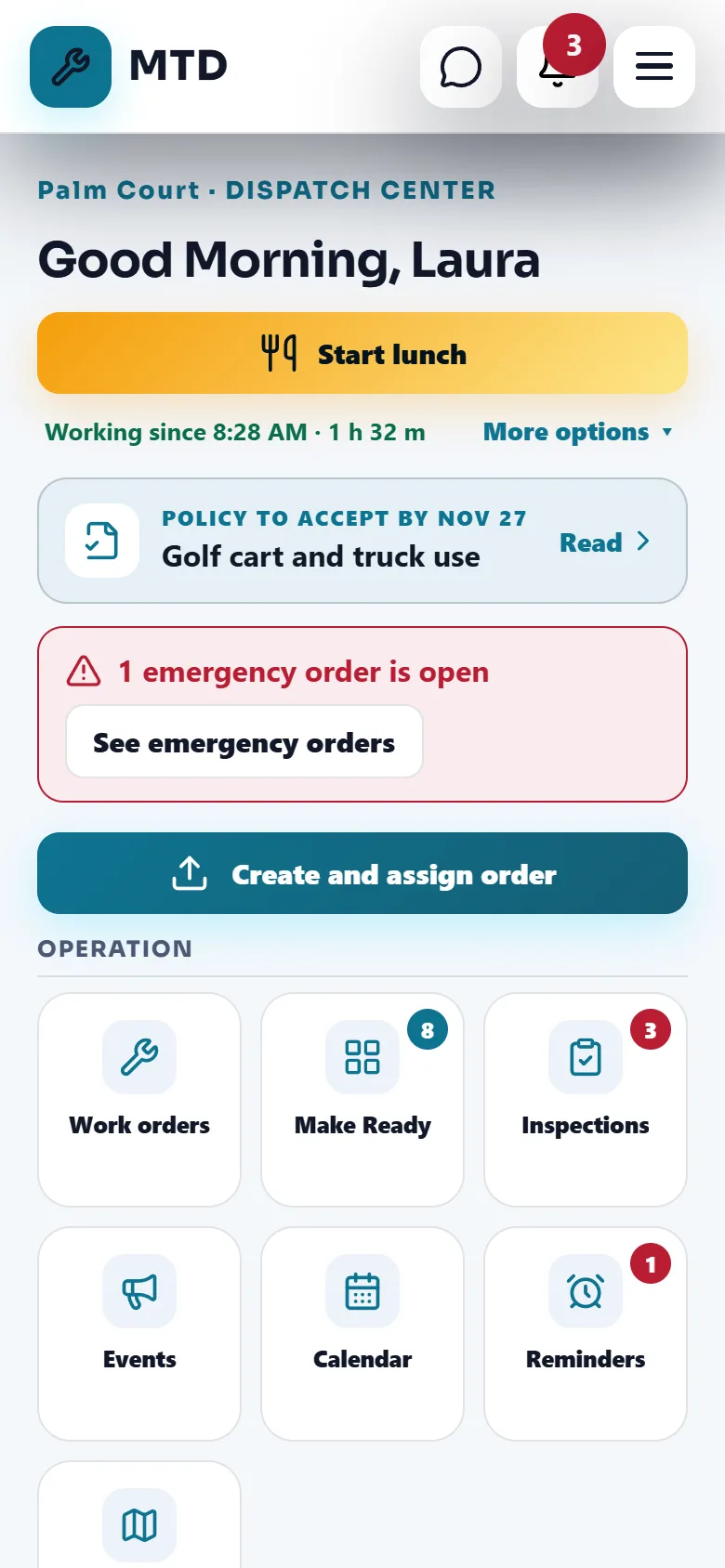
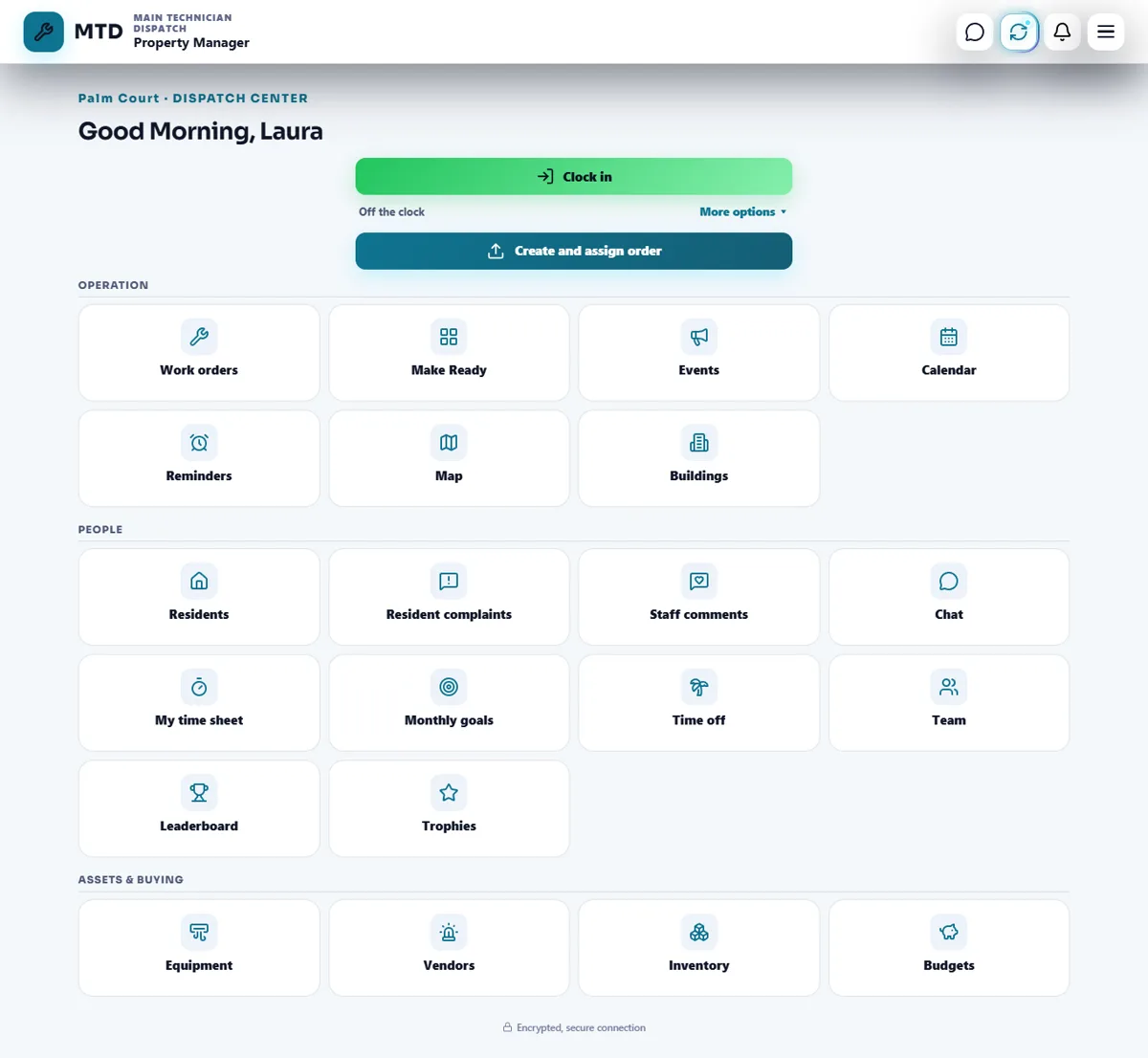
You supervise the work: you create, assign and follow work orders, and the maintenance supervisor and the technicians do them. While the property has an active maintenance supervisor, he runs Make Ready and the Emergency line and you see them without changing them. If the property has no supervisor, you run them.
Your first 5 things
- Open Get Ready
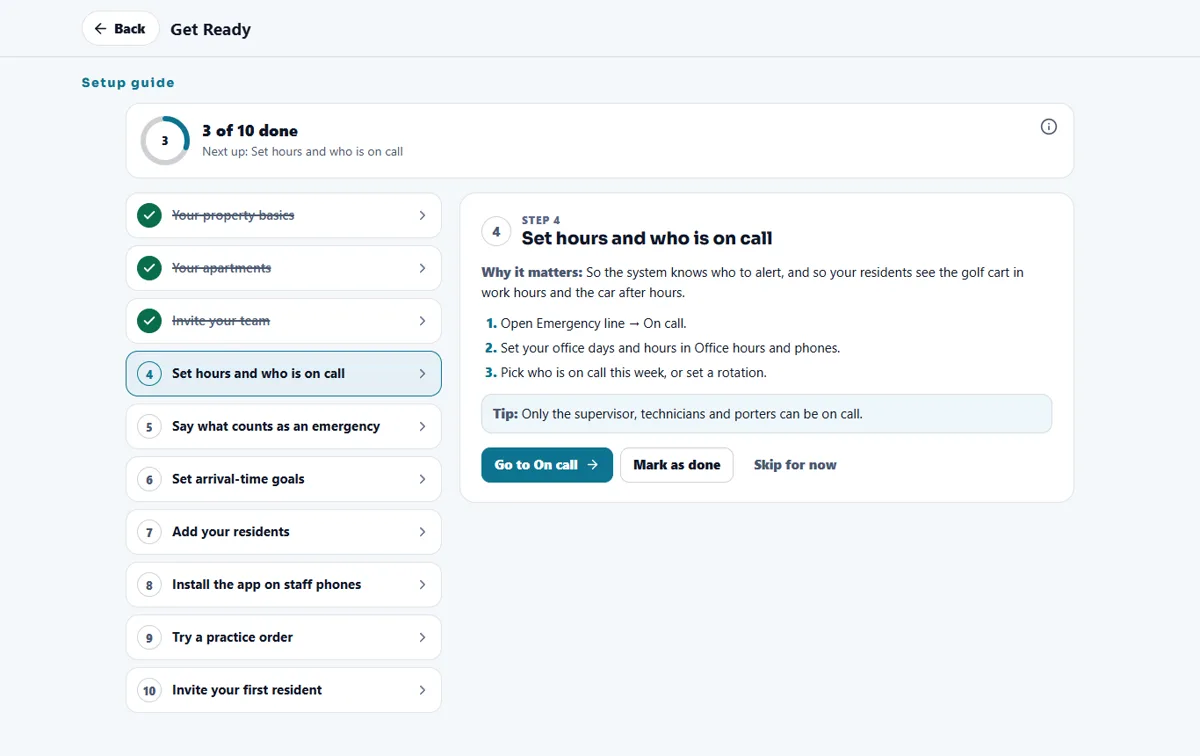
The Get Ready card sits just above your tiles and shows how many of the 10 setup steps are done. Open it to see the next step, why it matters and a button that takes you to the right screen. It checks most steps by itself, and only you and the other Property Managers of the property see it.
- Invite your team
Open Team, share the group link or send a personal invite by email, and approve each person's position when they ask to join. Invite your maintenance supervisor first: the supervisor can approve the technicians.
- Add your apartments and buildings
An apartment is saved when you add a resident with its number or when a Make Ready starts on it. Open Buildings to see the buildings and to run the set-up guide that arranges your apartments by building and floor.
- Turn on the modules you need
Open Profile, then My workspace, then Modules. Turn on only what the property uses; turning one off hides it and keeps its data. The Get Ready steps also have an Open Modules button.
- Set the clock rules
If you use the Time clock, open the time sheet and its Team tab. Two lines have a Change button: Where the team clocks in and Clock-in start time. Only the Property Manager and the bosses above can change them, and every change is recorded.
Your daily routine
- Start with the red strip. If an emergency is open, tap See emergency orders and check that someone has it.
- Open Work orders. Look at the Open and Assigned counts, and assign anything nobody has yet.
- Answer the Residents tile. A red number means resident requests are waiting for you.
- Close the finished work. In Work orders, Completed, review what the technicians finished and release it to the resident.
- Answer people. The Team tile shows people waiting for approval, Time off shows requests, and the time sheet shows time corrections.
You do not need to check everything every day. The red numbers on the tiles tell you where to look, and your supervisor handles the daily field work.
Guides to read next
Ready to try it with your own property?
Create your workspace, add your property and turn on the modules you need.