Start here: Resident
The resident portal is where you tell your property team about a problem in your home, add photos and follow the repair until it is done. You do not need a password.
- Who sees it
- Residents of a property that uses the Resident portal. You only see your own requests.
- Where to find it
- Scan the QR code from your property office, or open the link the office gives you, on your phone.
- What it needs
- The email your property office has on file for you, and your unit access code the first time.
What you see
The top of the portal shows your property and unit and a red Emergency Maintenance card with the after-hours emergency phone and a Call Now button. For danger to life, call 911. Under it are the card Is my request an emergency? and the office line. Then come the tabs: My requests, Events, Complaints, Staff and Map, the New request button and your list of requests.
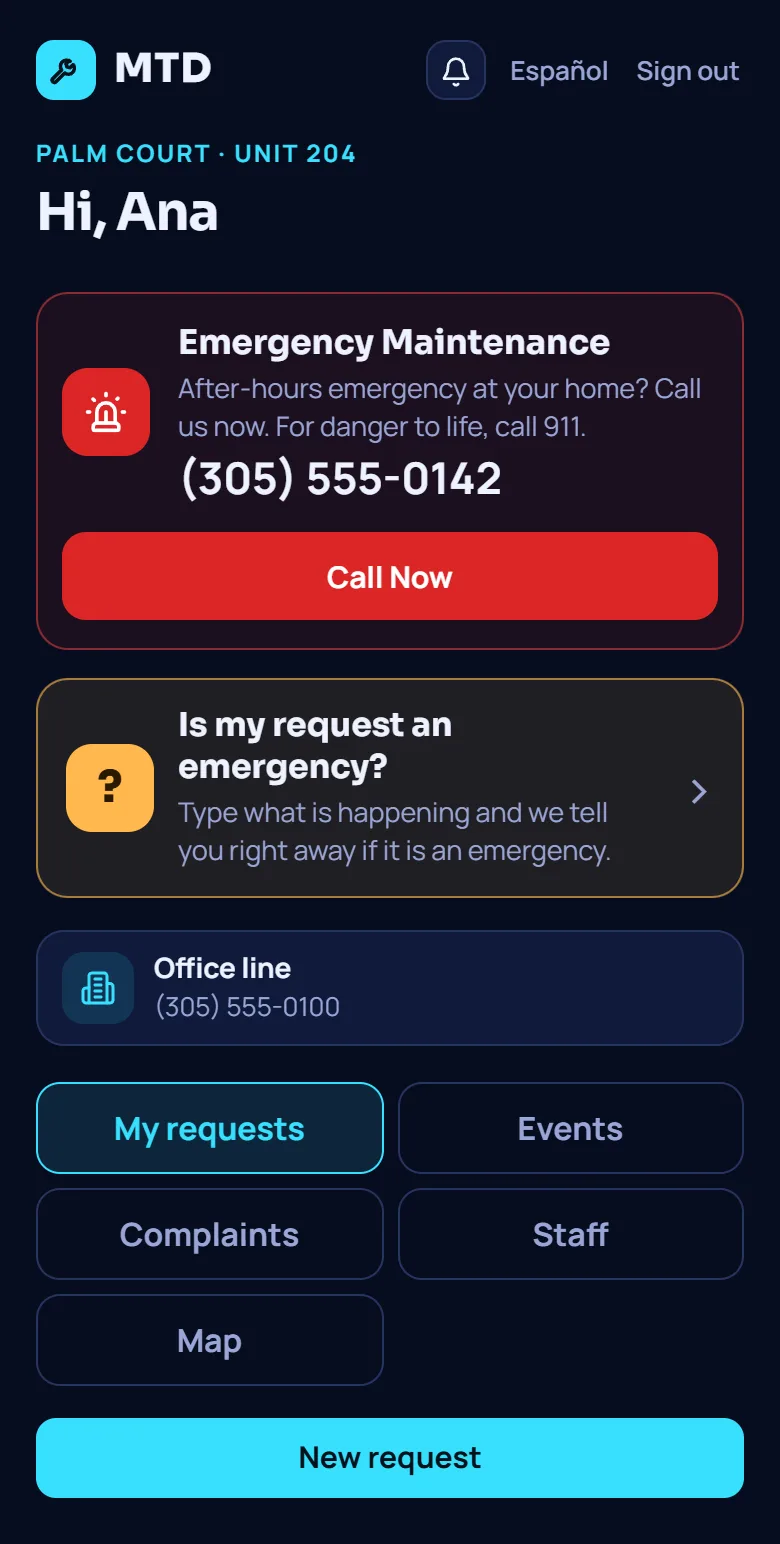
Your first 5 things
- Sign in with your email
Type your email and tap Email me a sign-in link. Open the link on the same phone. The first time you also say where you live: your unit, your unit access code (ask the office) and your name.
- Protect the portal with a PIN (optional)
Open Security & devices and turn on a 4-digit PIN so children cannot send requests by accident. The portal then asks for it every time it opens. After 5 wrong tries it locks for a while. If you forget it, sign out and sign in again with the email link to set a new one.
- Send a new request
Tap New request, choose the kind of problem, write what you see, where it is and since when, and add photos or one short video if you like. Say when you are usually home and whether the team may enter if you are not. Tap Send request.
- Follow the steps
Each request shows Received, Assigned, On the way, Working and Done. When the technician taps on my way, you see who is coming and about how long.
- Rate the work
When the work is done, you see a message from your property team and the question How did the work go?. Give 1 to 5 stars and an optional comment. You can change it until it is locked.
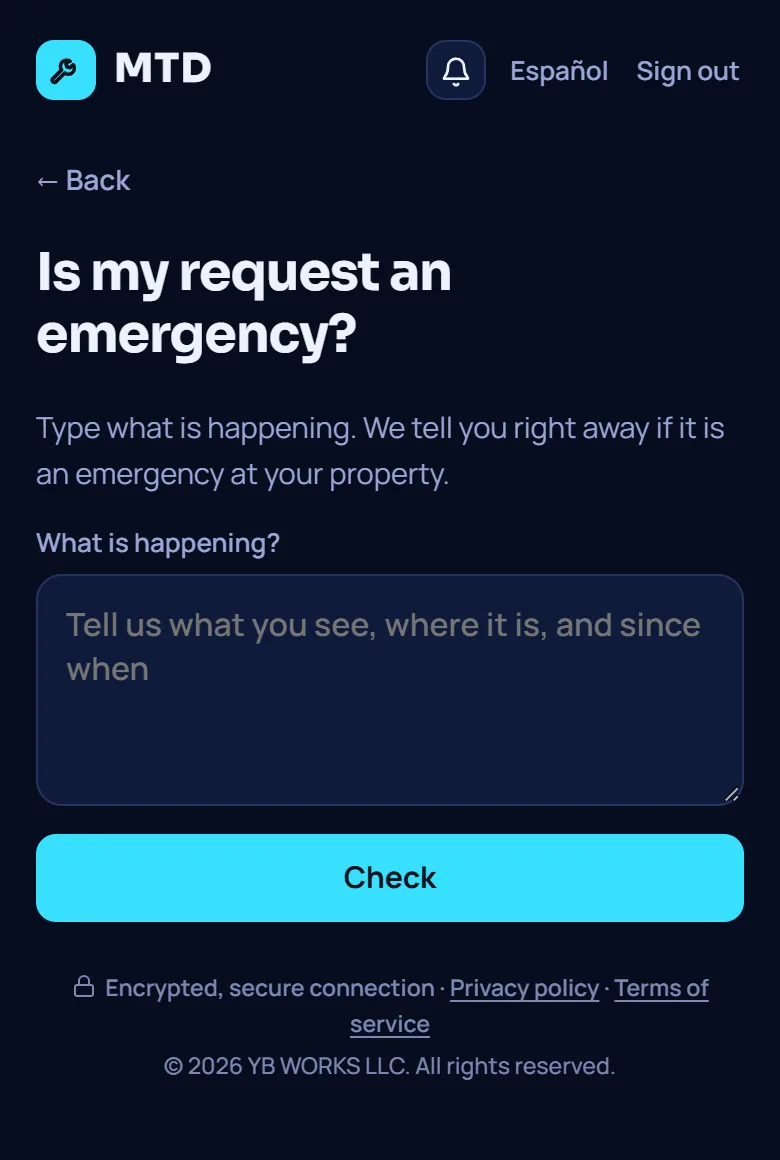
Is my request an emergency?
Not sure? Tap the card, type what is happening and tap Check. You get an answer right away: It is an emergency, It does not look like an emergency or We are not sure. The answer uses your property's own list of emergencies and common dangers. It is checked on your phone: nothing you type is sent until you send a request. Every answer reminds you to call 911 if anyone is in danger.
Tap Create the request with this and the form opens with your text already written, and marked as an emergency when it is one.
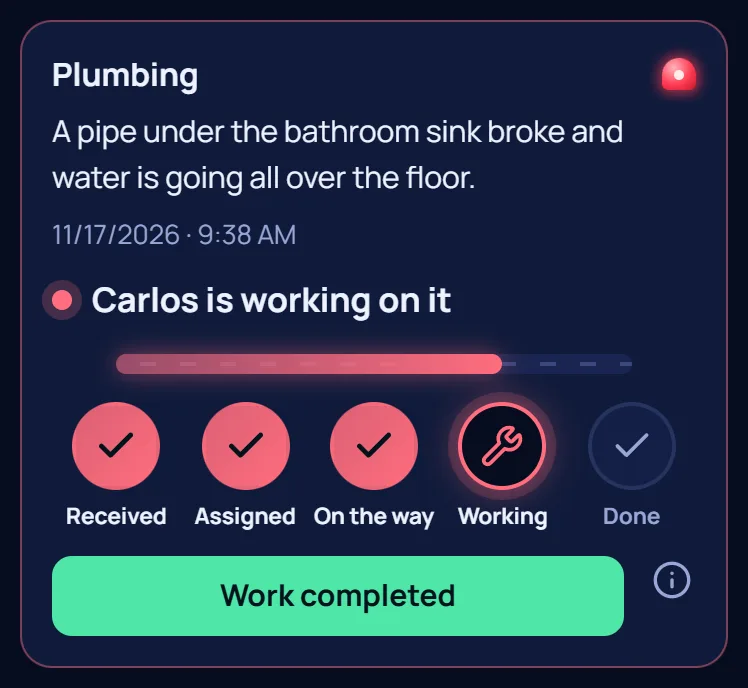
Confirming that emergency work is finished
In an emergency, after the technician has arrived, a green Work completed button appears under the status steps. When the technician finishes in your home and leaves, tap it and answer Yes, the technician finished, even if someone else still has to come. Tap Not yet if it is not true yet.
- It saves the time you confirmed. The property team can see that time.
- It does not close your request. The request closes by itself when the team records the work as done, and then you can rate it.
- If you tapped by mistake, tap Undo within 5 minutes. After that it stays as it is.
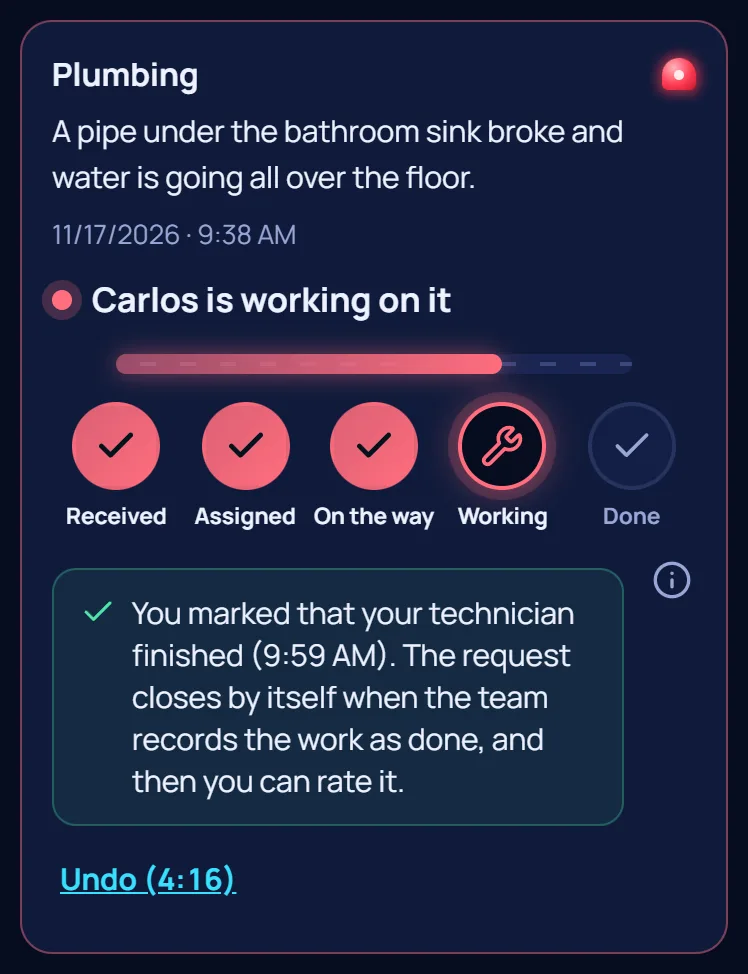
Tap only when the technician has really finished. Your property team can compare your time with the technician's, so an honest tap protects everyone.
More in the portal
- Events: what your property is organizing, with an Add to calendar button.
- Complaints: write to the office about a staff member, the quality of a repair or something else, and read the answer.
- Staff: thank a person who works at your property, or tell the office about a problem, up to 500 characters and no photos. Please be respectful: you can send up to 3 comments a day, and 2 a week about the same person. The Property Manager and the company's leaders read it with your name and apartment. If your Property Manager shares it with that person, they see only A resident, never your name or apartment.
- Map: the places of your property and whether they are open or closed, when your property uses it.
- My apartment: tell the maintenance team about your pets and whether your door has a code, so they come prepared.
- Notices I get: choose which optional notices reach you as notifications. Emergencies and planned shut-offs always do.
- Security & devices: see where your account is signed in and turn on fingerprint or face recognition on a supported phone.
You see a message that the portal is turned off at your property right now. Contact your property office.
Guides to read next
Ready to try it with your own property?
Create your workspace, add your property and turn on the modules you need.