Budgets
Budgets show the monthly budget of each property and, for maintenance and Make Ready, how much was already spent. The amounts are private: each person sees only the budget that belongs to their position.
- Who sees it
- The owner, the manager and the property manager see every budget of every property, and they are the only ones who add, change or remove them. The line at the top of the screen names only the Property Manager, and the owner and the manager have the same access. The maintenance supervisor sees the maintenance budget and what was spent, and cannot change it. Other positions do not have the tile.
- Where to find it
- The Budgets tile on the home screen.
- What it needs
- Nothing. This part is always on, there is no switch for it.
What it is for
You set an amount for each area, month by month, and the app compares it with what the work orders cost. You see at a glance if maintenance or Make Ready is on track. The four areas are Maintenance, Make Ready, Office and Common areas.
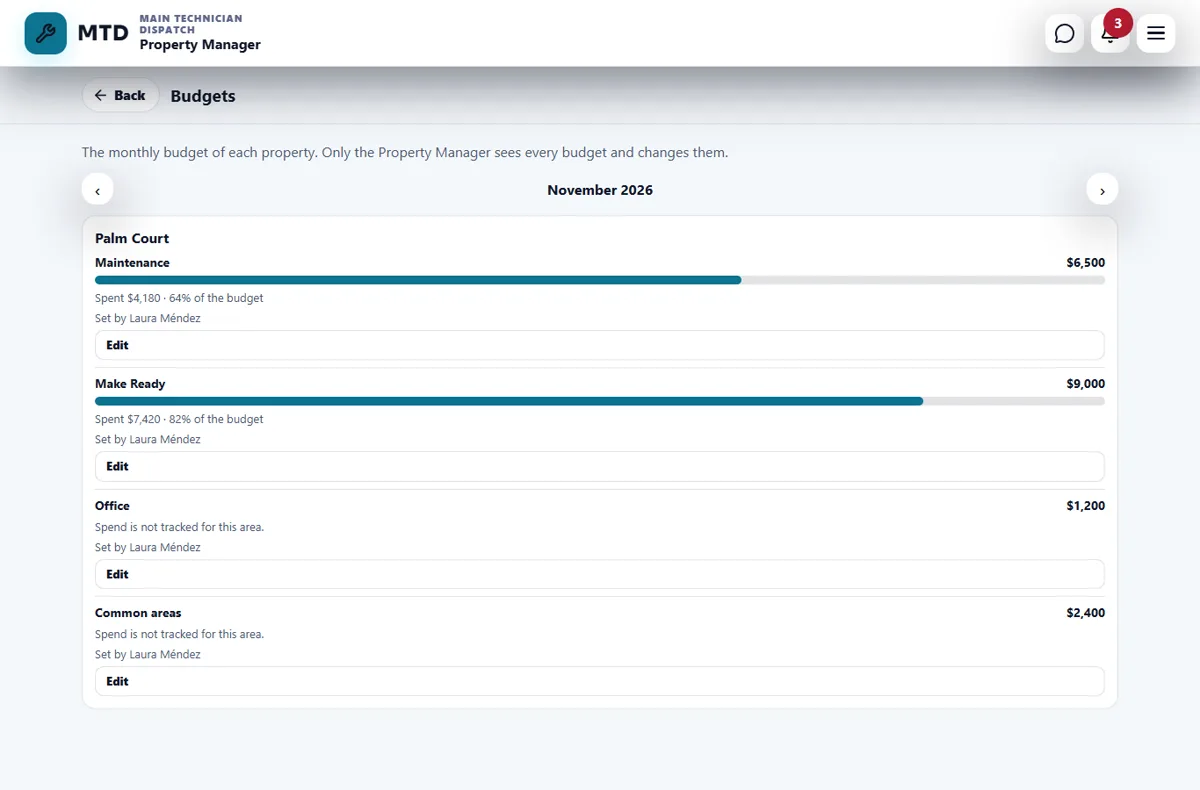
Set or change a budget (property manager)
- Open Budgets and choose the month
Tap the Budgets tile. Use the arrows next to the month name (Previous month and Next month) to move through the months.
- Add or edit an area
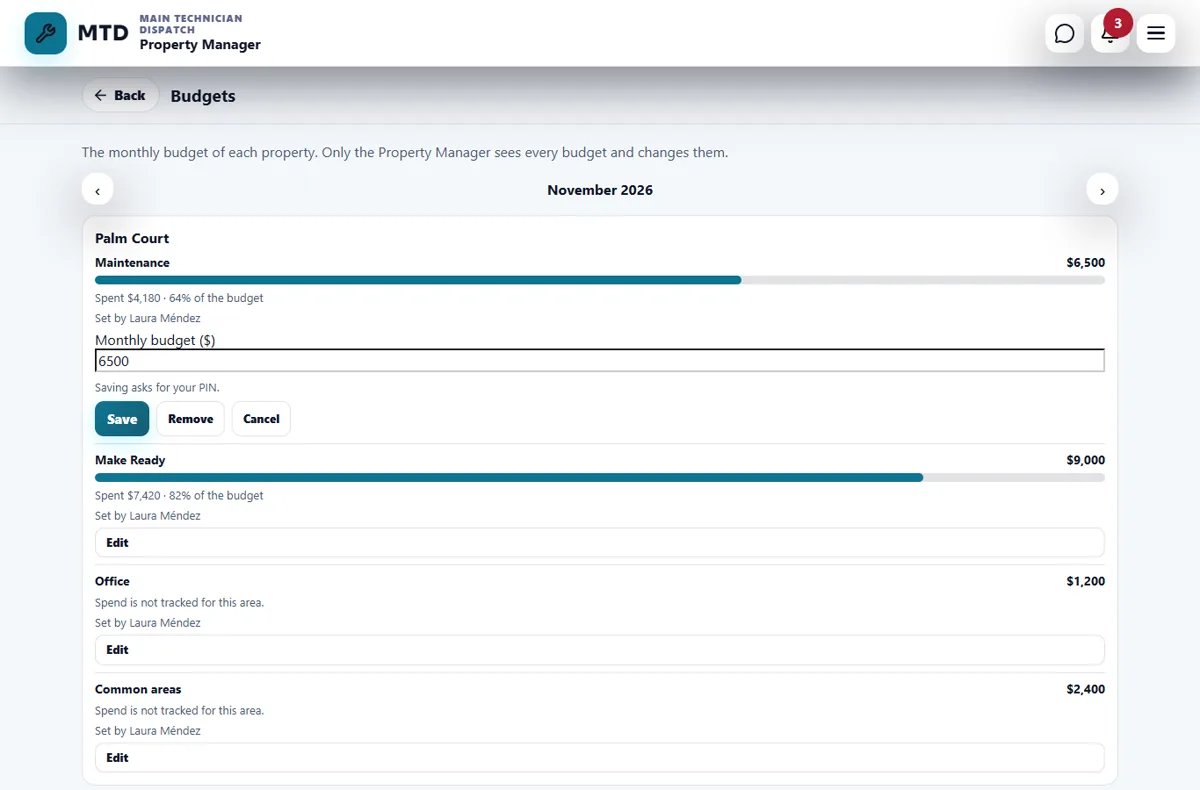
Under the property, tap Add on an area without a budget, or Edit on one that has it. Type the Monthly budget ($), for example 2500.
- Save with your PIN
Tap Save. The app asks for your PIN before it saves. Remove deletes that month’s amount for the area. Each area shows Set by and the name of the person who did it.
Spent compared with the budget
For Maintenance and Make Ready each area shows Spent and the percentage of the budget, with a bar that changes color when it goes over 100%. For Office and Common areas the app shows the budget but says Spend is not tracked for this area.
- Maintenance adds up the costs entered on the work orders of that property in the month: vendor, materials bought and other costs. The hours of labor are not counted.
- Make Ready adds up the costs of the Make Ready apartments and of their orders in the month.
- A cost counts in the month in which it was entered.
What the supervisor sees
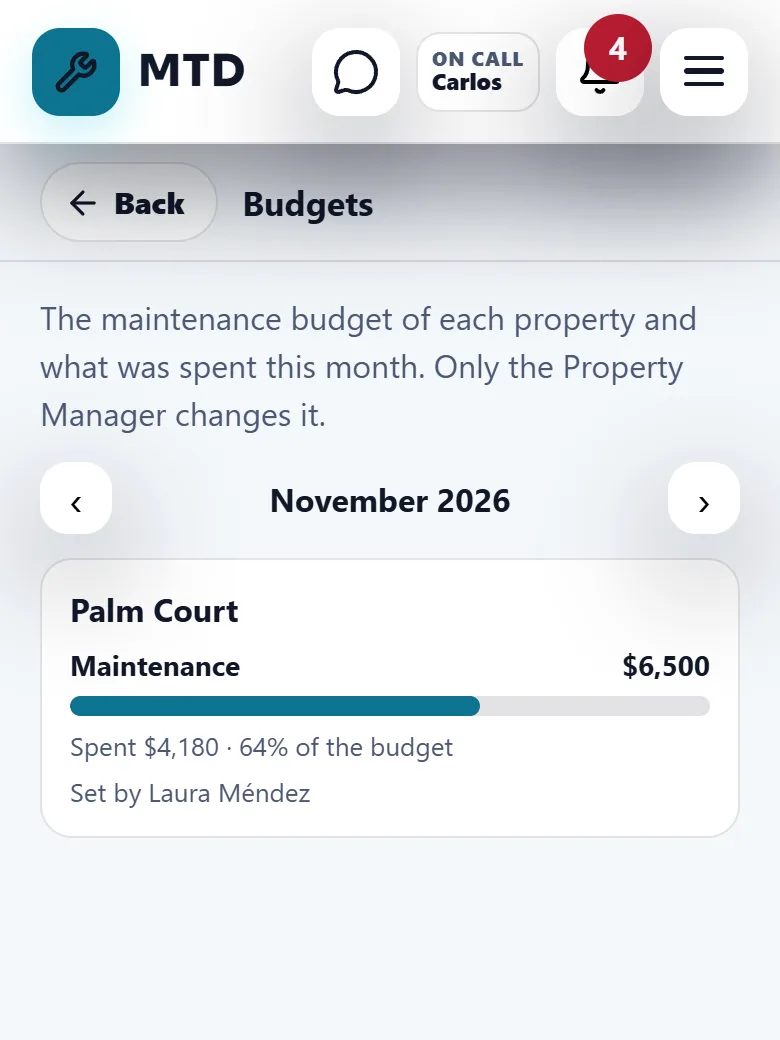
The maintenance supervisor opens the same tile and sees only the maintenance budget of each property and what was spent this month. There are no buttons to change it.
Tips
Ask the team to enter every cost on the order (vendor, materials bought, other). The spend bar is only as complete as the costs entered.
Budget amounts do not appear on screens of other positions. If someone needs to see them, they need a position that can.
Related guides
Ready to try it with your own property?
Create your workspace, add your property and turn on the modules you need.