Security for IT teams
This page is for the IT and security people of a company that uses Main Technician Dispatch. It says in plain words how sign-in, data separation, roles, history, backups and stored keys work, and it only states what the app and our public pages prove today. Where we do not have something, we say so.
- Who it is for
- IT heads, security reviewers and owners who need to know how access is protected before they bring a team in.
- Where to start
- Read Sign-in protections and Data isolation first. The IT Admin panel gives your IT person a live view of the same controls.
- What it is based on
- The app as released in November 2026 and our public Privacy Policy, subprocessors list and data processing agreement draft.
Sign-in protections
The 2-step rule is enforced by our servers on every request, not only by the screen. A person who skips the screen still gets no data.
- Strong passwords. At least 12 characters with upper case, lower case and a number, and the app also asks for a symbol. Passwords are limited to 72 characters.
- 2-step sign-in. After the password, the person types the 6-digit code of an authenticator app. It is required for every office and supervisor role. Technicians and porters can turn it on themselves, and your IT Admin can make it required for everyone.
- Fingerprint sign-in. A passkey counts as a strong sign-in, but only when every passkey on the account was confirmed by the person at the moment the session started. Someone who only knows the password cannot add a passkey and use it to skip the code.
- First authenticator app. Before the first app can be set up, the person has to prove their e-mail in that same session.
- PIN. After sign-in the app asks for a personal 4-digit PIN. It is a lock for the screen, not a replacement for 2-step. PINs are stored as salted hashes. Sensitive actions, such as seeing pay or removing a person, ask again for the PIN or the password. Changing a connection key asks for more, as described under stored connection keys.
- Bot check. The sign-in, sign-up and password-reset screens run an automatic check that blocks automated abuse.
- New sign-in alert. When a staff member signs in from a browser and system they have not used before, they get an e-mail with the time and the device, and what to do if it was not them. Never more than 5 such e-mails a day per person.
- Sign out everywhere. In Profile, My account, Security, any person can end every session of their account. A session that was ended is refused at its very next request.
Property Manager level (owner, manager, Property Manager), Assistant Property Manager, Leasing Manager, Leasing Consultant and Maintenance Supervisor: required. Maintenance Technician and Porter: optional, and required once the person has an authenticator app or the company rule is on.
Wrong passwords, cooldowns and known devices
The web app's sign-in screen (in a browser, on a computer or a phone) counts wrong passwords on our server, so the count cannot be reset by reloading the page. This section is about that screen.
- Five attempts
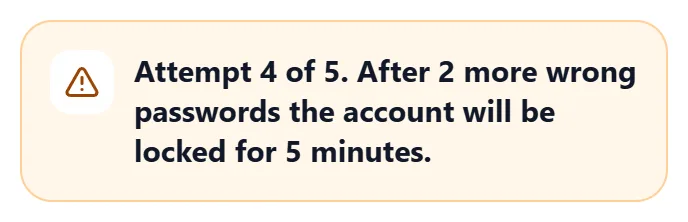
At the 4th attempt the screen warns that two more wrong passwords will lock the account for 5 minutes.
- A 5-minute lock with a countdown
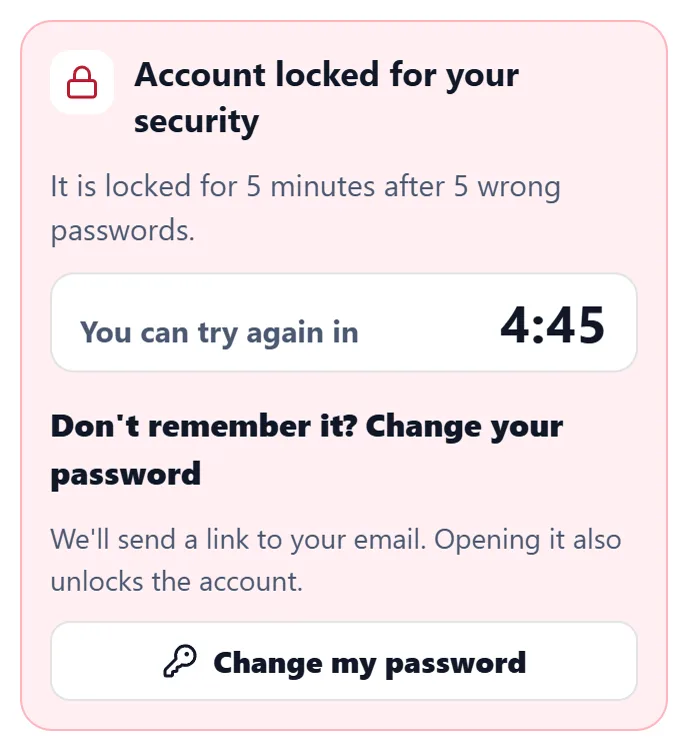
After the 5th wrong password the sign-in screen locks that account for 5 minutes, and a live countdown shows when the person can try again. A Change my password button sends a link to their e-mail, and opening it also unlocks the account.
- Longer locks, never forever
After the lock the person gets 5 more attempts. If those fail too, the next lock lasts 15 minutes, then 1 hour, and never longer. A quiet day starts again from zero.
- A known device has its own counter. A browser becomes known only after the person proved who they are in it with the password, the authenticator code or the e-mailed link. A stranger who keeps entering wrong passwords for someone's e-mail cannot lock that person out of their own known device. We keep up to 10 known devices per account, and only a hash of the device secret is stored.
- A network limit. One network address gets 30 wrong attempts in 15 minutes across all accounts. A right password gives its attempt back, so a room of people signing in correctly on the same Wi-Fi is never locked out.
- PIN locks grow too. The sign-in PIN locks for 15 minutes after 5 wrong tries, then for 1 hour on every next 5, and never longer.
- Our sign-in provider also applies its own limits to how many attempts one network address can make, and a bot check protects the sign-in. These two protections work even for an attempt that does not come through the web sign-in screen, which the account lock above does not count.
- The phone app. Sign-in in the phone app is protected by our sign-in provider's limit per network address and by the bot check. The account lock, the warning at the 4th attempt and the known-device counter described above are not in the phone app yet.
Lost phone and recovery
A lost phone is the weak moment of any 2-step system, so a reset is hard to abuse.
- Only someone strictly higher in the same line resets a person: a Property Manager level person resets everyone below, a Maintenance Supervisor resets technicians, a Leasing Manager resets leasing consultants. Nobody resets themselves or an equal.
- While your company has an active IT Admin, the IT Admin does the resets for everyone below the Property Manager level. The Property Manager level keeps the rule above.
- A reset asks for the resetter's PIN, is limited to 3 a day per person, signs the person out everywhere and removes their authenticator apps and passkeys.
- The person gets an e-mail with a 6-digit code and must type it together with a new password. Until they do, they cannot use the account, even with a valid session. The owners and managers are e-mailed too.
Data isolation between companies
Each company lives in its own workspace. The separation is enforced inside the database for every record, not only in the app.
- Between companies. No user can see or change another company's work orders, residents, inventory or team data. The links between records, such as a work order and its photos or an inventory item, are checked so they cannot point into another company.
- Properties of one company. The properties placed in the same workspace share one team and its data, and limits per property inside one workspace are not available today. Leaders above properties see only the properties of their own company. A workspace joins a company's group of properties only after its own top manager shares a private code and accepts the request with a PIN.
- Inside a workspace. Each person sees what their role needs. A technician's access to work orders, photos and related data follows the assignment. Sensitive fields, such as a resident's door code, are shown only to the few roles that need them, and each look is recorded.
- Files. Photos and documents sit in private storage and open through short-lived links. Uploads are limited by type and size.
- Our own control panel. It is a separate application behind an access gate and a second-step code. It shows totals and account details, never the content of a company's work such as work orders, notes or photos.
Roles and permissions
People join through an invitation, and a person above them approves their position. The positions form a ladder, and you can only act on people below your own position. The person who joins at the Property Manager level is approved by someone above them (the owner, a manager, your IT Admin, or, for a property a corporation created, the leader who invited them), so two people are always involved.
- The Property Manager can switch individual abilities on or off per person in Delegate access, and every change is recorded and the person is told. The server decides what each person may do. The app only hides the buttons.
- Apart from what the IT Admin may do (next bullet), some things are never switches and stay with the Property Manager level: billing, pay rates, the keys of connections, removing people, approving roles and trophies.
- An IT Admin is a separate account, not a member of the team. It sees who has access, how they sign in and the company rules, can remove access or reset 2-step, can invite people and approve join requests below the manager level (Property Managers and their assistants included; the owners and managers are e-mailed when it is someone at the Property Manager level, and a Property Manager the IT Admin invited personally is approved by an owner or a manager), and can look at the daily work read-only. It cannot change daily work, see door codes, keys, PINs or private chats, change anyone's role, or invite owners, managers or other IT Admins.
- A person who is removed loses access at once and is signed out on every device.
Audit history
The app keeps a record of sensitive actions. The record never contains the secret itself, such as a key, or the text of a review.
- What is recorded. Role approvals and rejections, people removed or reset, permission changes, who was left in charge, module changes, billing and ownership changes, connection key changes, pay views and changes, and everything an IT Admin does or looks at.
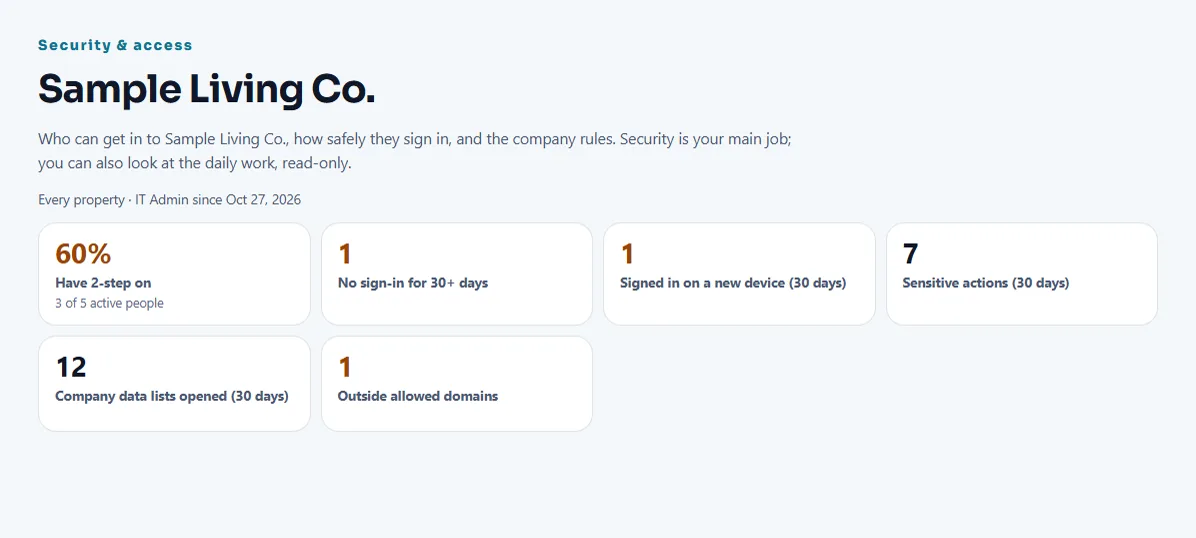
- Who reads it. IT Admins read it in Security & access, under Sensitive actions, newest first, and can download it as a file.
- Who is told. When IT changes a company rule or downloads a copy of the data, the owners and managers are e-mailed right away.
Backups
- The data is copied every day to an encrypted backup. We keep the most recent 14 daily copies, and older ones are replaced on that schedule.
- These are our own encrypted copies. We say this plainly because the database provider's built-in backups are not part of today's setup.
- An IT Admin can download a copy of the company's records at any time, and you can ask us for an export for 90 days after a subscription ends.
Encryption and stored connection keys
- In transit. Every connection is encrypted. The app and the website tell browsers to use only secure connections, and the app cannot be shown inside another website.
- At rest. Stored data is encrypted by our hosting providers.
- Connection keys. A key you save to connect an outside system is stored encrypted in a vault on the server, never as plain text. The app shows only its last 4 characters, and nobody can read it again, not even from the screen. Only the top office roles can save, replace or erase it, and each time the person confirms with their PIN and their fingerprint: either a fingerprint sign-in on that phone, or their password followed by a fingerprint link we send to their e-mail. A right password alone is never enough. Five wrong passwords in 15 minutes lock that action for 15 minutes. Every change is recorded without the key.
- Passkeys and PINs. A passkey stores only a public key on our side, and a PIN is stored as a salted hash.
E-mail, domain and website protections
- Our pages send protective headers: secure connections only, no framing by other sites, no guessing of file types and a limited list of places the app may load content from.
- The app only works from our official addresses. Any other address that serves a copy sends the visitor to the official one.
- Your IT Admin can limit which e-mail domains may join the company, and the Security & access panel counts the people whose e-mail is outside them.
Privacy, data deletion and subprocessors
These pages are the source for everything about personal data. We do not repeat their lists here.
- What we collect, why, and how long we keep it: Privacy Policy.
- Which outside providers process data for us, and what they get: Subprocessors. Company administrators are told by e-mail at least 30 days before one is added or replaced.
- The terms for handling a company's data as its processor: Data Processing Agreement, which is published as a draft.
- How a person deletes their account, and what is erased and what the employer keeps: Delete your account.
When a subscription ends, we keep the company's data for 90 days so it can ask for an export, and then delete it, except where the law requires us to keep something. If we learn of a breach that affects a company's data, we tell that company without undue delay.
What we do not have today
We do not currently hold a security certification, and no independent auditor has examined our controls. Backups are our own encrypted copies, and a restore from them has not been timed in a full drill. If your review requires something we do not have, write to us before you decide.
Questions about this page, or a security concern you want to report: apps@maintechniciandispatch.com.
Related guides
Ready to try it with your own property?
Create your workspace, add your property and turn on the modules you need.