On call
On call decides who covers emergencies after hours. While someone is on call, an emergency nobody has goes straight to them, with the siren.
- Who sees it
- Everyone on the team sees who is on call. The owner, manager, property manager, assistant and the supervisor schedule the turns. Only the supervisor, technicians and porters can be on call.
- Where to find it
- The Emergency line tile, then the On call part of that window. The header chip On call shows who is on duty now.
- What it needs
- The On call switch in Modules (off by default). Travel pay also needs the time clock.
Schedule who is on call
- Open the Emergency line
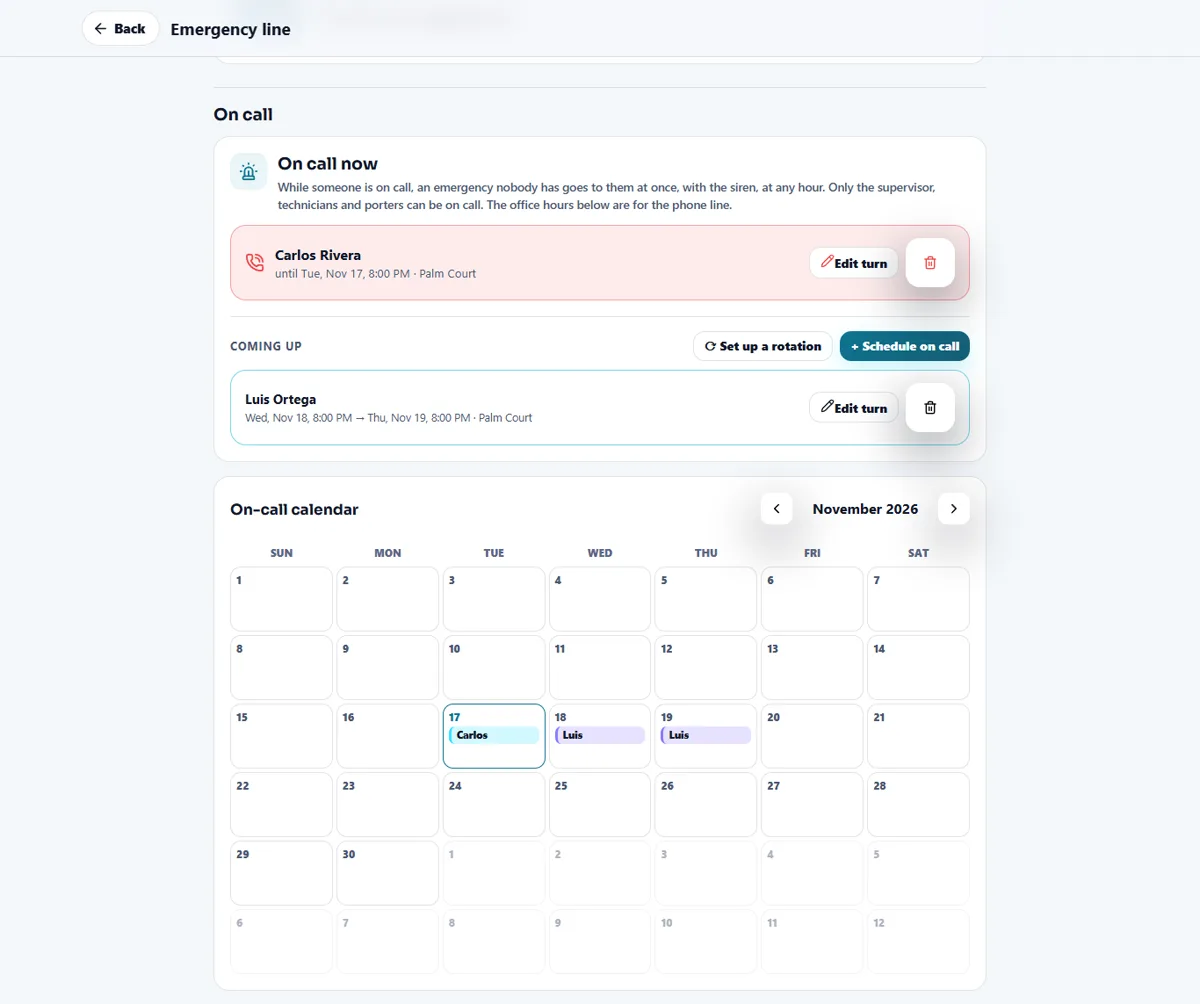
Tap the Emergency line tile and go down to the On call part. It shows On call now, Coming up and the On-call calendar for the month.
- Schedule one turn
Tap Schedule on call. Choose the person, then Tonight, This weekend, This week or Custom (set Starts and Ends). Choose one property or All properties, add an optional note and tap Save.
- Or set up a rotation
Tap Set up a rotation, put the people in order and set the first turn. The app repeats it and fills the calendar. You can give one turn to someone else, remove one turn, or remove the upcoming turns of a rotation (the turn running now stays).
- Check who is on duty
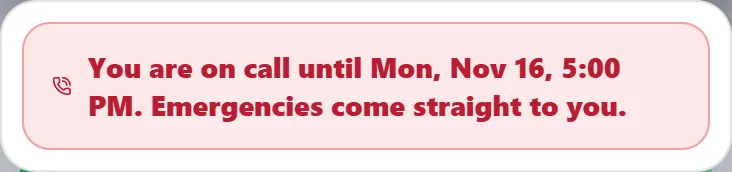
The header chip On call shows the name (or You when it is you). Tap it to read the list, with Call and Message next to each person. When it is your turn you read: You are on call until… Emergencies come straight to you. The chip is not shown on the property manager’s own home.
What happens in an emergency
- An emergency nobody was assigned to goes straight to the person on call, with the siren, at any hour. Without anyone on call, the supervisors working that day get it, and if there are none, every technician and porter. See Emergencies.
- After-hours phone. In the Office hours and phones part you set, for each property, the opening and closing time of each day, the Emergency line (after hours) phone and the Office line phone. Residents see them in their portal: under Emergency Maintenance there is a Call Now button.
- Travel pay hint. A card Pay on-call travel lets the property manager level pay the trip when an emergency comes in outside the regular work hours and the person on call clocks in for it outside those hours too. Enter the minutes one way for someone who lives outside the property and for someone who lives at the property, and choose whether the trip back home is paid too. The trip shows in the time sheet and in the emergency’s cost, and counts toward overtime. A call solved by phone is not a trip. It needs the time clock, and the card says so when it is off.
The Emergency line window and the optional phone line
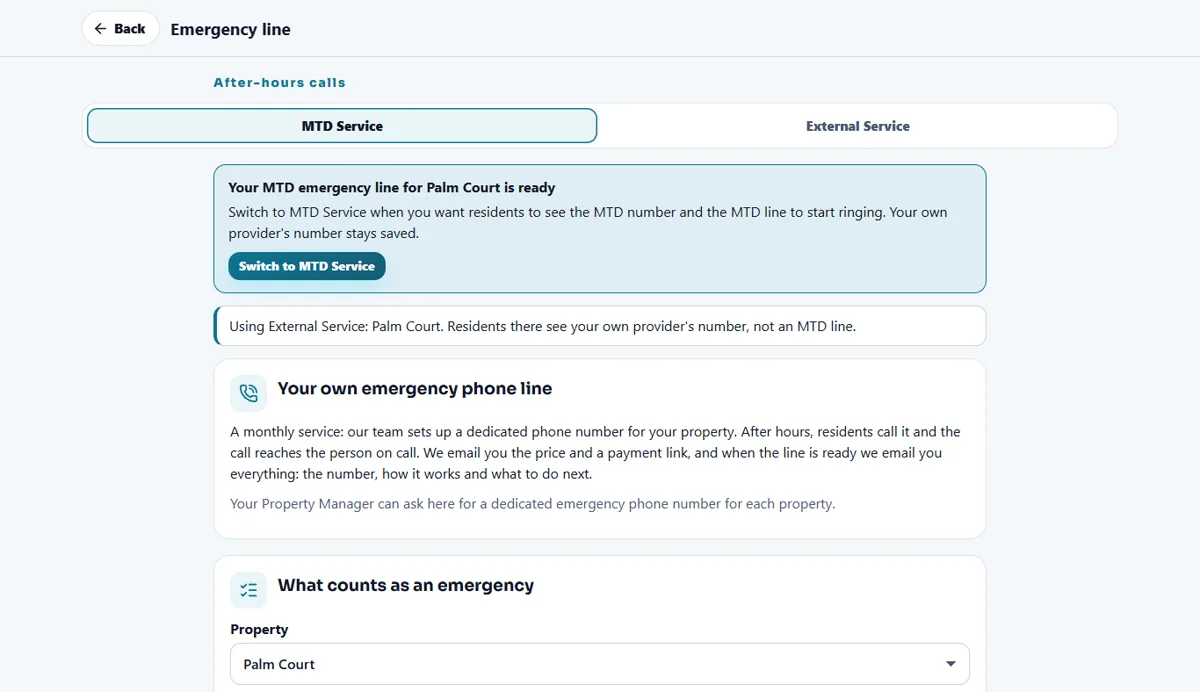
The same window has two tabs under After-hours calls. External Service is for a property that already has its own after-hours provider: save its number (and its name if you want) and residents see that number, not an MTD one. MTD Service is where the optional Your own emergency phone line lives. Switching between them is always a person’s tap, never automatic, and the number you saved stays saved.
- Ask for the line
The property manager level opens Your own emergency phone line, chooses the property and taps Ask for an emergency line. Everyone else only reads that the property manager can ask for it. The team emails the details and a payment link.
- Follow the progress
A progress bar shows Requested, Payment confirmed, Number assigned · being tested and Active. While the number is being tested, do not share it with residents. When it is active, residents see it on the Emergency line button of their portal. You can cancel a request you made.
- It needs On call
The line works together with this module: with On call off, the line calls nobody, routes nothing and residents do not see the number. Turn On call on and the line comes back by itself.
Tips
Schedule at least one person for the nights and weekends before you turn the module on, and set the office hours of each property. Without office hours the phone line treats every call as after hours.
When the module is turned off
On call turns off the on-call schedule, the siren for unassigned emergencies, the after-hours phone residents see, the on-call travel pay and the paid emergency phone line, which then calls nobody and routes nothing (you keep the service you already use). Your saved turns and settings are kept, and the line comes back by itself when you turn On call on. Emergencies still work as described in Emergencies.
Related guides
Ready to try it with your own property?
Create your workspace, add your property and turn on the modules you need.