Performance reviews
Performance reviews let a manager write a fair, private review of each person for a period: a rating, comments, goals and the real numbers the app counts. The person reads it and confirms they saw it. The module is off until you turn it on.
- Who sees it
- The person reviewed (once it is shared), the reviewer, and the managers above that person. Teammates never see a review. The tile only shows for people who can review someone or who have a review waiting.
- Where to find it
- The Performance reviews tile on the home screen. A red number on the tile means a review is waiting for you.
- What it needs
- The Performance reviews switch turned on in the Modules window. Nothing else to set up.
What it is for
A review is one page about one person for one period, written by the person's manager. It keeps the rating, the comments and the numbers together, and it leaves a clear record that the person read it. Reading is not agreeing: the button only says "I have seen this review", and the person can add a comment.
Who can review whom
- The Property Manager level (owner, manager, Property Manager) reviews the Assistant Property Manager and everyone below.
- The Assistant Property Manager reviews the Leasing Manager, the Maintenance Supervisor, technicians, porters and leasing consultants.
- A Maintenance Supervisor reviews technicians and porters. A Leasing Manager reviews leasing consultants.
- Nobody reviews themselves, and nobody inside the workspace reviews the Property Manager level.
Write a review
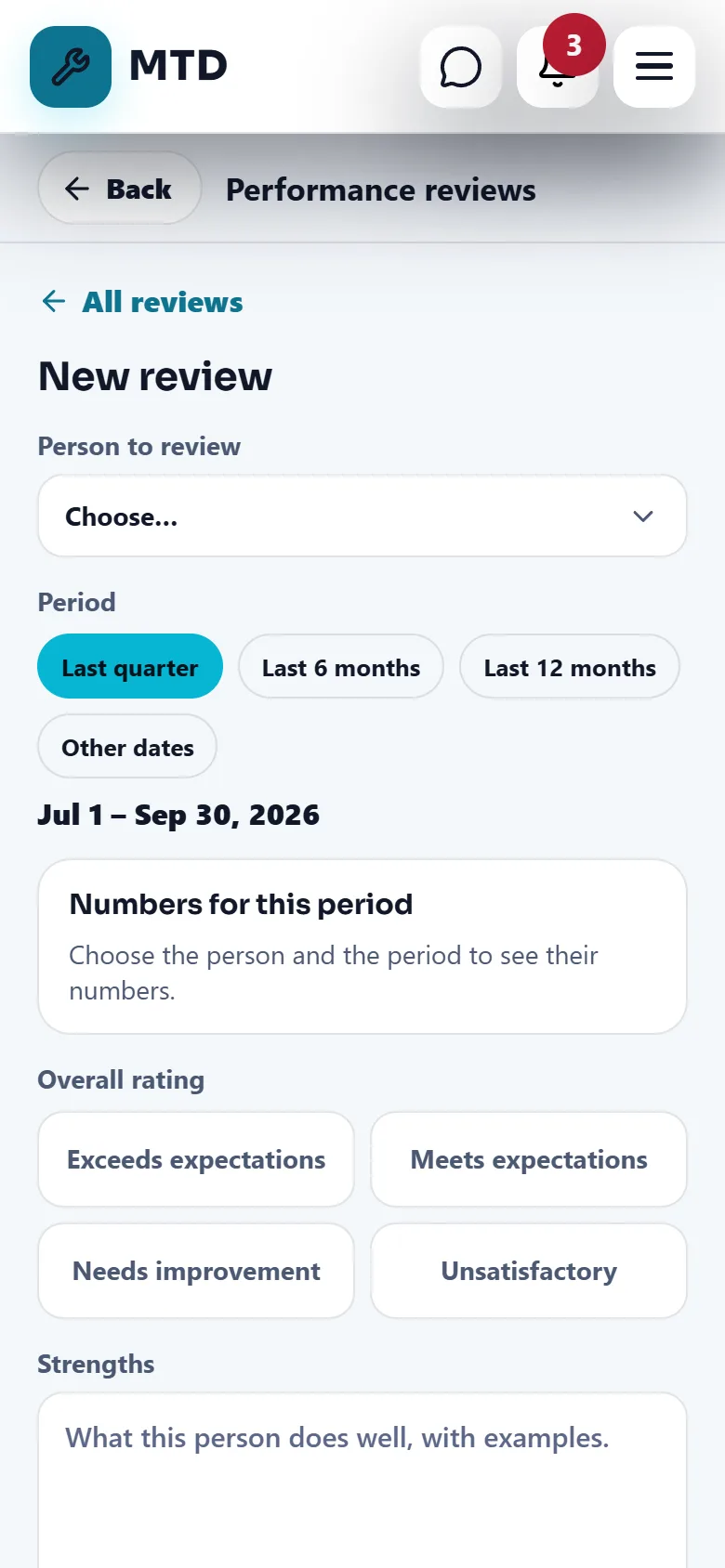
- Open Performance reviews and tap New review
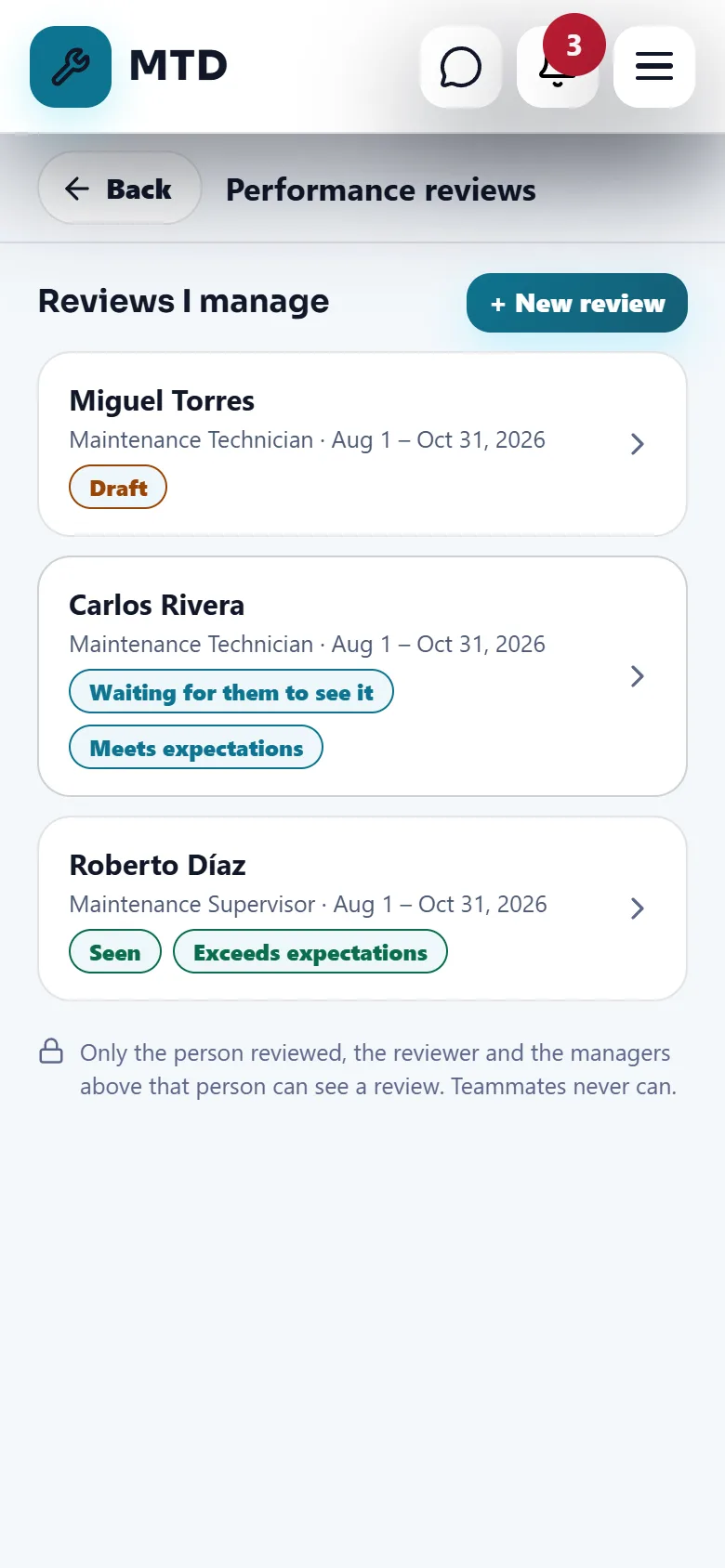
The list is called Reviews I manage. Drafts come first, then reviews waiting for the person, then finished ones.
- Choose the Person to review and the Period
The quick buttons are Last quarter, Last 6 months and Last 12 months. Choose Other dates to type your own From and To. A period can be one year at most and cannot end in the future.
- Read Numbers for this period
The app counts them for you while the review is a draft. They are described below.
- Choose the Overall rating
Exceeds expectations, Meets expectations, Needs improvement or Unsatisfactory.
- Write the sections
Strengths, Areas to improve, Goals for next period and Overall comment. Each one can have up to 4,000 characters. Give examples.
- Save draft or share
Save draft keeps it private to you and the managers above the person. Leaving the screen with changes also saves the draft. To share, you need the overall rating and at least one section. Tap Share with the person, then confirm with Yes, share it.
After you share, the review cannot be changed and cannot be deleted. The person gets a notification. You can print it or save it as a PDF with Print / PDF. Only a draft can be deleted, with Delete draft.
The numbers the app counts
You do not type these. The app counts them from what really happened in the period, live while the review is a draft. When you share, they are frozen and stay as they were that day.
- Work orders completed, and Punch / Go-Back finished.
- Emergencies started within 10 minutes, shown as a count out of all emergencies.
- Points earned, and Monthly goals reached out of the goals decided.
- Resident rating. It counts only the ratings that were already shared with that person.
- Days worked and Missing clock-outs. These show only when the Time clock module is on and the reviewer can already see time sheets.
A number whose module is off is left out. Office roles do not show work-order numbers while they are zero.
Read and confirm a review
- Open the notification or the tile
The top of the list says "Your performance review is ready". Tap it, or find it under My reviews, marked Waiting for you.
- Read it
You see the rating, the numbers, the four sections, and who wrote it.
- Add a comment if you want
The comment is optional. Tell your manager what you think.
- Tap I have seen this review
Confirm with Yes, I read it. The review becomes Seen, and your manager is told. Seeing the review does not mean agreeing with it.
If the person does not confirm
A shared review nobody confirmed can be closed by the reviewer or a manager above the person 14 days after sharing, with Close without acknowledgment. It can also be closed at once when the person is no longer on the team. A closed review cannot be reopened, and it says it was closed without the person's confirmation.
Tips
Use the same period for everyone in the same position so the numbers compare fairly. Write one example for each strength and each point to improve. Print a copy for the personal file if your company keeps one. The app records that reviews were created, shared and confirmed, but not the rating or the words.
When the module is turned off
The Performance reviews tile disappears for everyone, and no review can be started, shared or confirmed. Reviews already written are kept and come back when you turn the module on again.
Related guides
Ready to try it with your own property?
Create your workspace, add your property and turn on the modules you need.