Start here: Porter
The porter uses the same phone portal as the technician. You get your own position name, and everything below works the same way: clock in, take lunch, follow your assigned work and finish it.
- Who sees it
- Porters. The position sits just below the technician in the team list.
- Where to find it
- The app on your phone, or the same address in the phone's browser.
- What it needs
- An invitation from your supervisor or Property Manager, who approve your position like a technician's.
What is the same as the technician
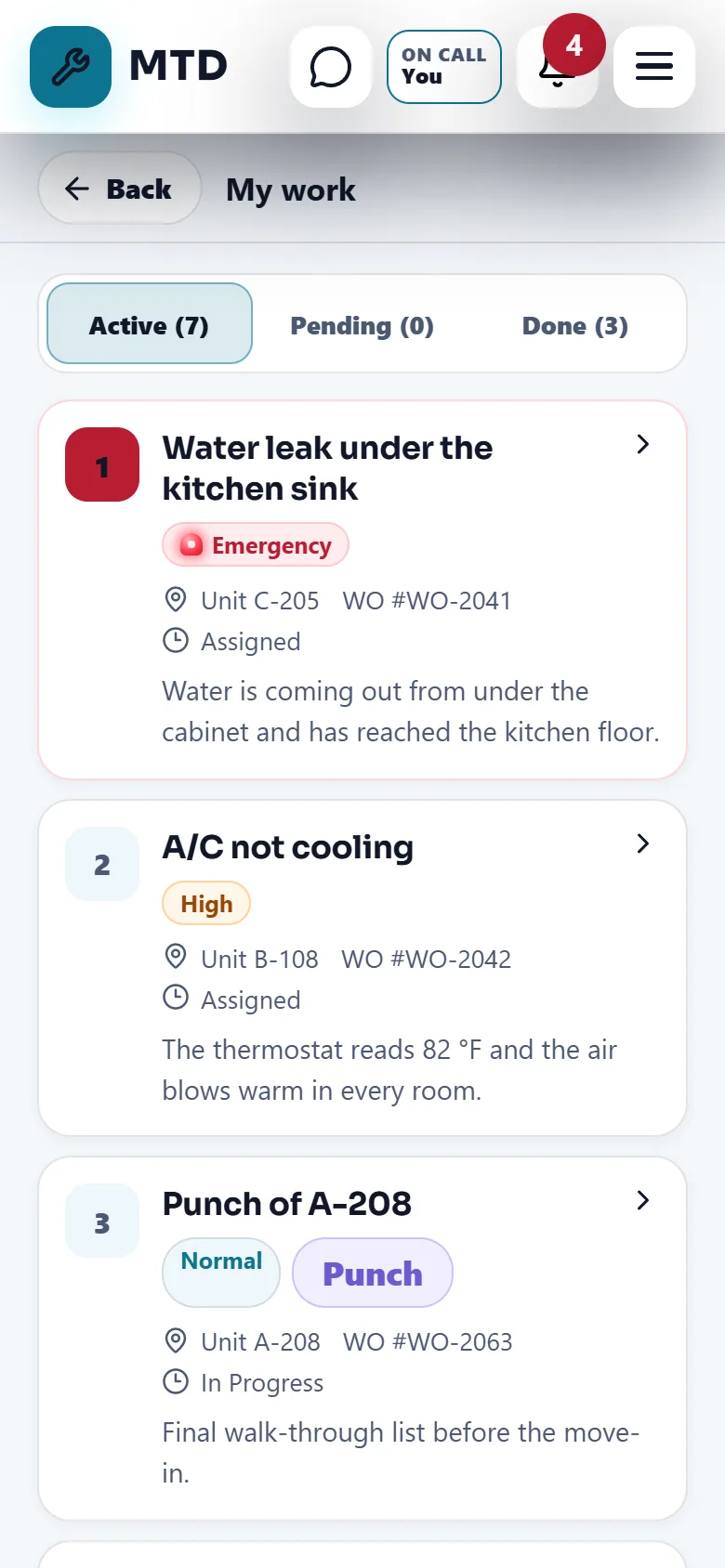
A porter has the technician portal with the same abilities. You see the work orders assigned to you, start and complete them, clock in and out, read your own time sheet, use the chat, receive notices with the siren, and earn points and trophies. You can also be on call for emergencies, like the supervisor and the technicians.
Your position name is Porter everywhere in the app. The home screen has the same counters (Active, Pending, Done) and the same tiles: My work, Pending, History, My time sheet, Reminders, Time off, My map, Inventory, Chat and the rest.
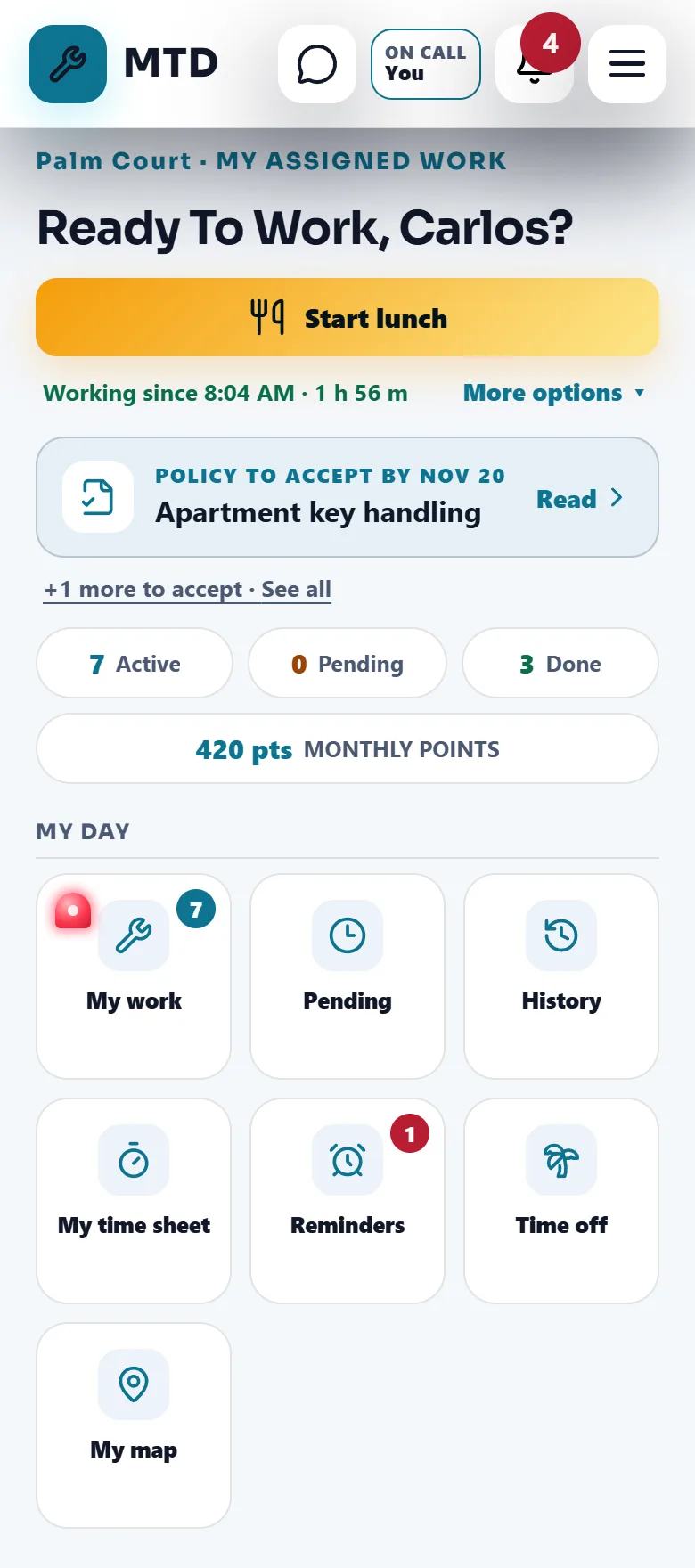
The Equipment tile (temporary equipment left in apartments) is not on the porter's home. If an order needs it, the question appears inside the order when you finish it.
Your first 5 things
- Sign in and allow notifications
Open the app, sign in and allow notifications so emergencies and new orders reach you.
- Clock in
Tap Clock in when you start your day. Your location is saved only at the moment of each punch. Only your Property Manager and the bosses above see it, and your company's IT admin can see it too in the read-only company data. Between punches nothing is saved, unless your property uses team positions on the Map and you agreed: then your position is shared only while you are clocked in, and it stops at lunch and at clock-out.
- Open My work
Your orders appear with emergencies at the top. Use the Active, Pending and Done tabs.
- Start the order
Tap Start work. On an emergency tap Accept first. If a resident reported the problem, tap I'm on my way and later I'm at the property.
- Finish it, or put it on Pending
Write what you did, add a photo if it helps and tap Complete work order. If you cannot finish, open Can't complete this work order?, pick a reason and tap Move to Pending.
Your daily routine
- Start of the day: clock in and open My work.
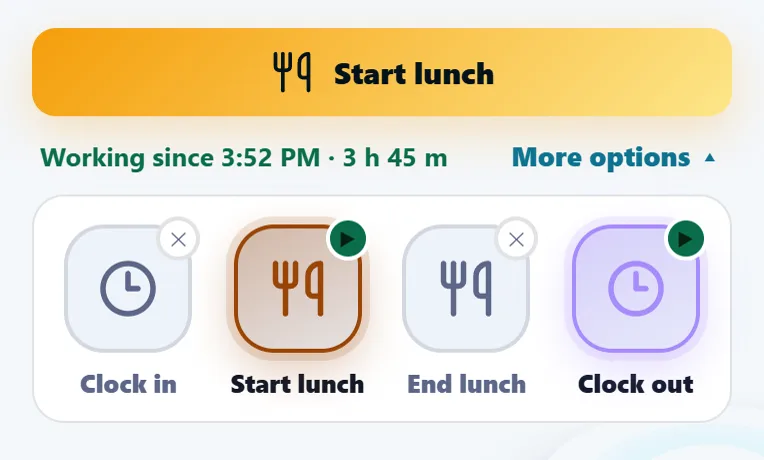
- Lunch: the big button changes to Start lunch, then End lunch, then Clock out.
- All day: take emergencies first. Use Chat to tell the office what you need.
- End of the day: tap Clock out and tap it again to confirm.
The full step-by-step, with the reasons for Pending and what to do with no signal, is in the technician guide. Everything there applies to you.
Guides to read next
Ready to try it with your own property?
Create your workspace, add your property and turn on the modules you need.