Inventory
Inventory is the stock of parts and supplies of your maintenance shop. Everyone who works with material records what they use, the count stays right, and the people who buy are told when something runs low.
- Who sees it
- The property manager and the maintenance supervisor manage the inventory: they add items, sections and prices, and add stock. Technicians and porters record what they use. Other office roles can look at it but cannot change it.
- Where to find it
- The Inventory tile on the home screen. The window is called Maintenance stock.
- What it needs
- The Inventory switch in Modules.
What it is for
Each item has a name, a quantity, a minimum level, the shop where it is kept and the exact spot on the shelf. Every change to a quantity is saved with who made it, when, how much and, if they wrote one, why. That history answers “where did the P-traps go?” without asking around.
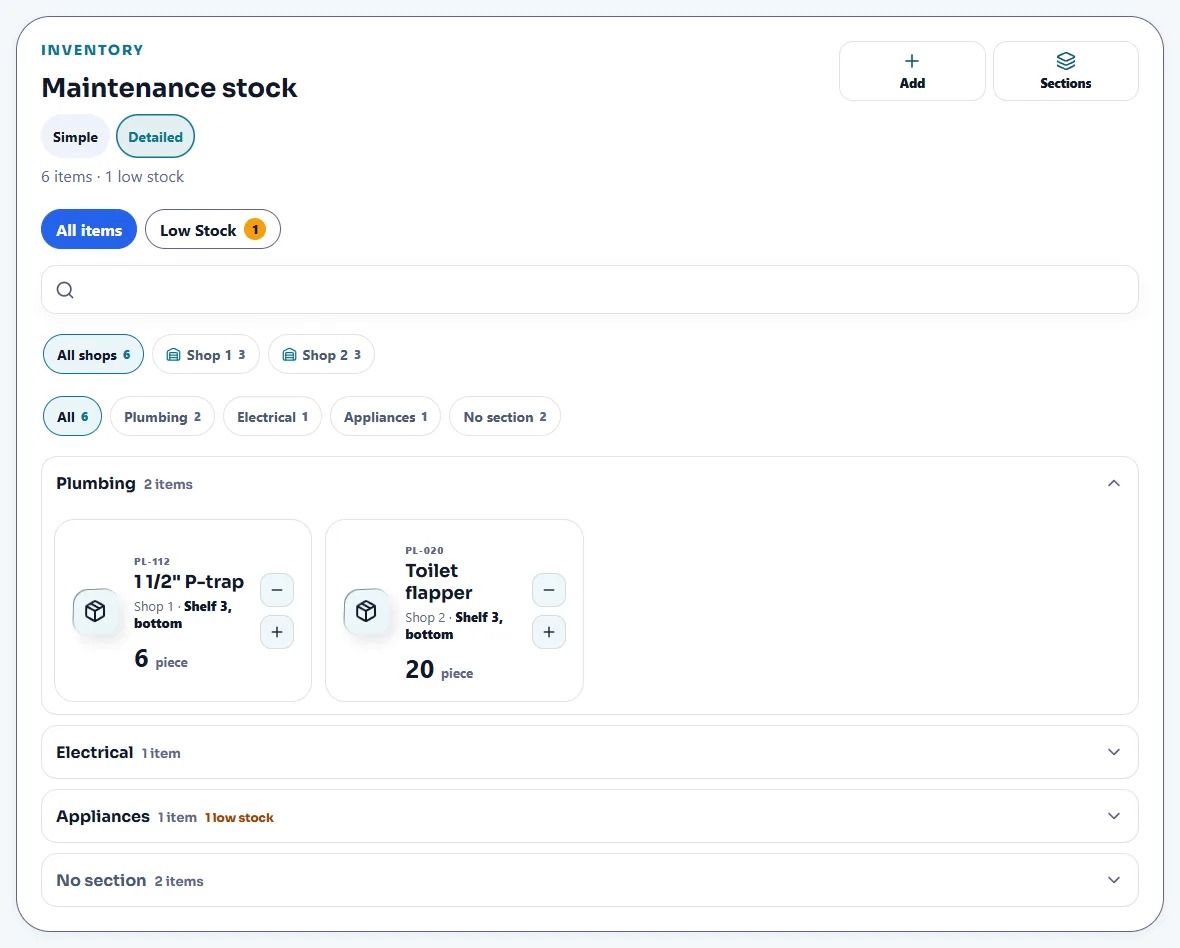
Add items and organize them (property manager or supervisor)
- Add an item
Tap Add. Write the Item name, an optional SKU, the Unit, the Current quantity and the Low-stock level. You can also set a Unit price ($), the Shop where it is kept, the Exact spot (for example, Shelf 3, bottom) and a section. Tap Save item.
- Make sections
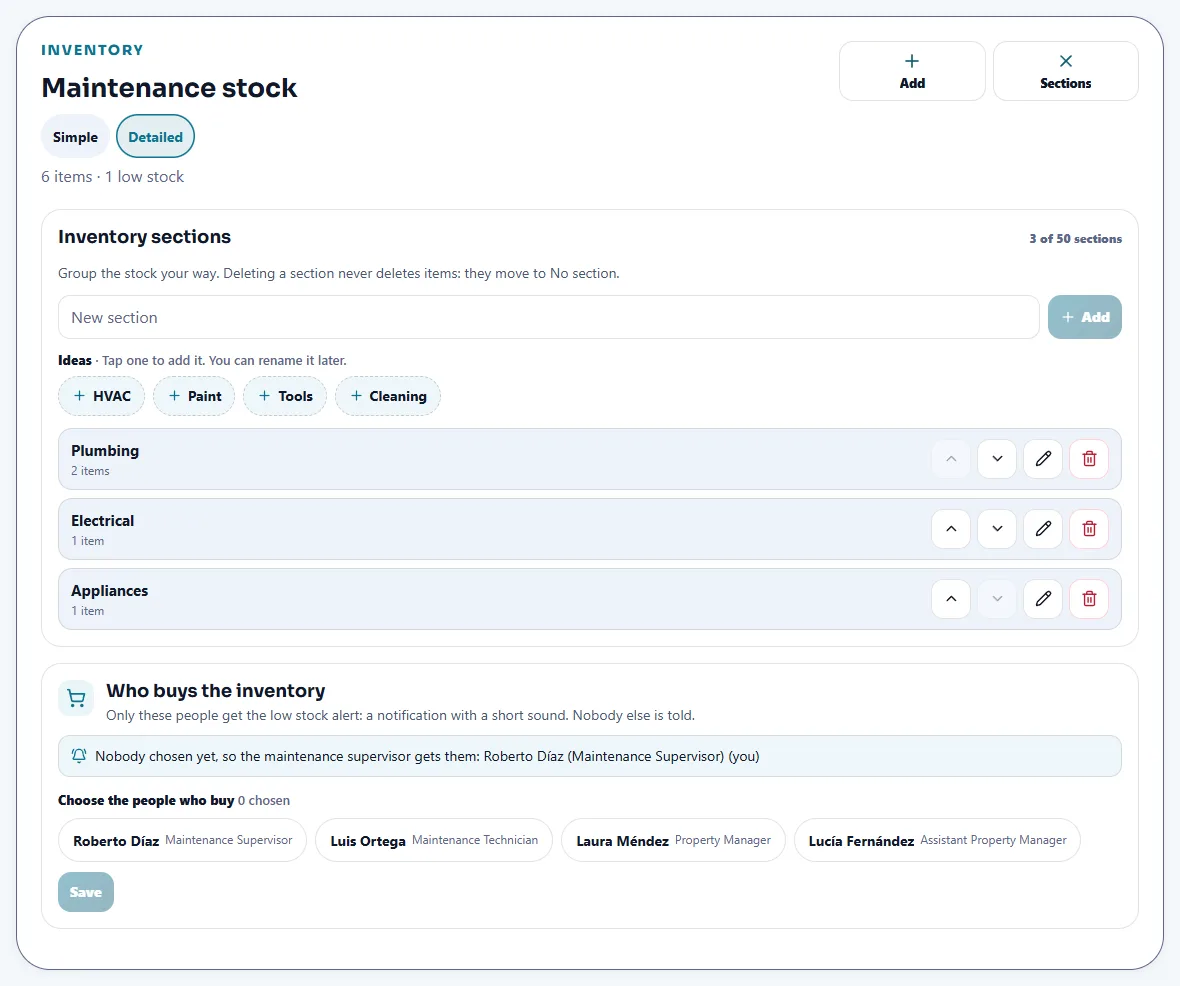
Tap Sections to group the stock your way, or tap an idea such as Plumbing or Electrical. You can reorder, rename and delete sections. Deleting a section never deletes items: they move to No section.
- Use several shops
When the items are kept in two or more shops, a shop filter appears. Everyone can filter by shop and search by name, SKU, shop or spot.
- Choose who buys
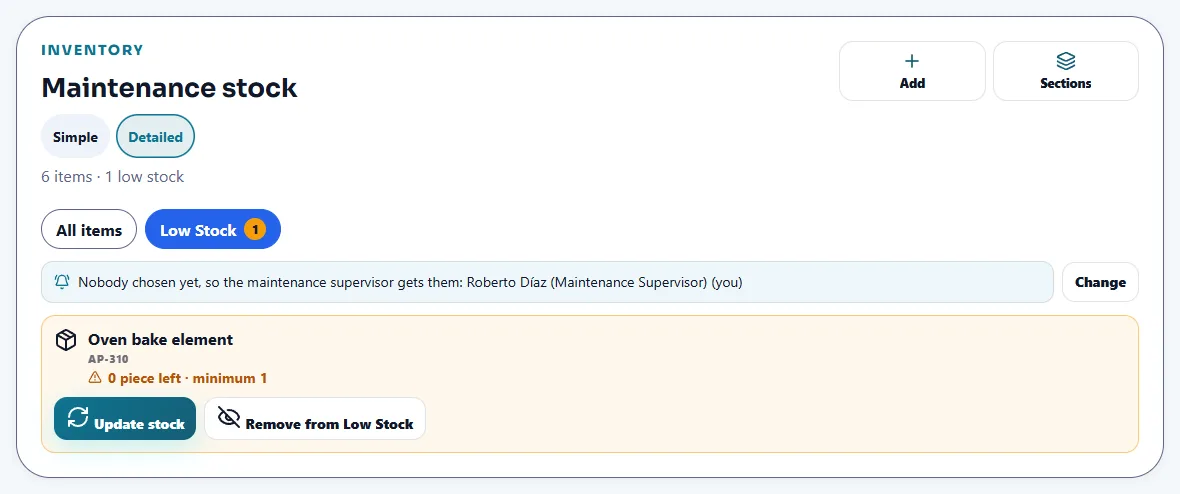
In Sections, Who buys the inventory lists the people who get the low stock alert. With nobody chosen, the maintenance supervisor gets it.
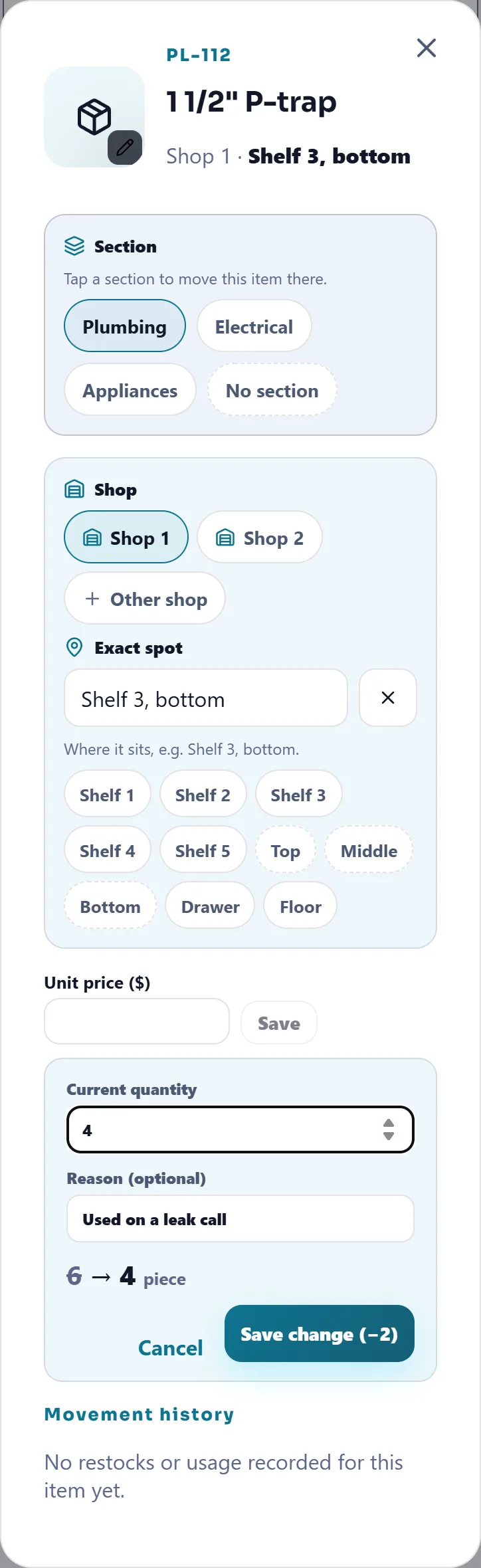
Take out and add stock
- Tap the minus or the plus
On an item, the minus button takes one out (everyone who works with material has it). The plus button adds one (only the property manager and the supervisor). Nothing is saved yet: the item asks you to confirm.
- Confirm the change
Tap Save change. A quick change is saved with a short automatic note. If someone else changed the count a moment ago, the list reloads and you try again.
- Change a count with a reason
Tap the item to open it, tap the quantity, type the new number and, if you want, a Reason (optional). You see the change before saving, for example 6 → 4. A technician or a porter can only lower a count, never raise it.
- Read the history
At the bottom of the item, Movement history lists every Used and Added with the person, the date, the amount and the reason.
Parts used on a work order
When a technician completes an order and writes what was done, the app reads the text and shows Detected from your resolution. The technician confirms only what was really used. Inventory changes after the order is completed, not before. The used parts show in the costs of the order, with the quantity and the unit price when one is set. When Inspections replaces a smoke or CO detector, it can take one from the item chosen for that kind of detector.
Low stock
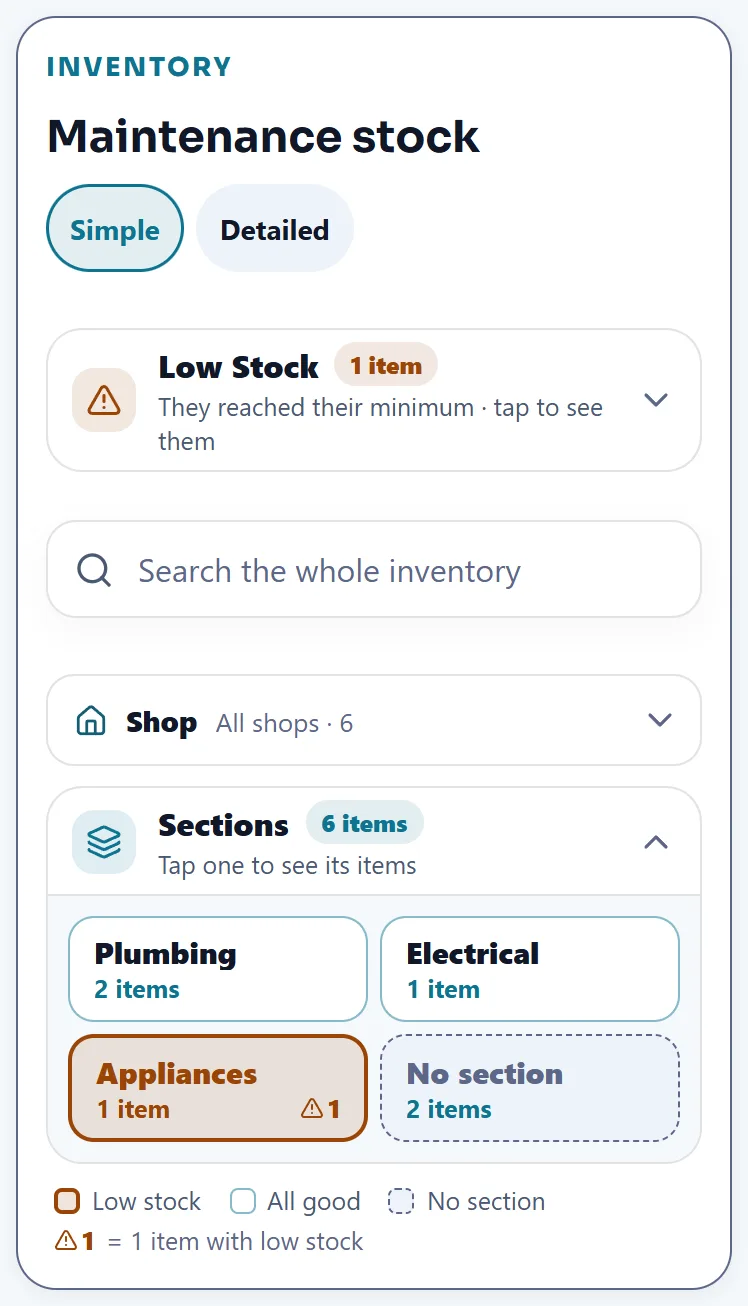
- An item is low when its quantity is at or below its minimum. The Low Stock tab lists them, and in the Simple view a bar at the top does.
- When an item reaches its minimum, the buyers get a notification once. Nobody else is told.
- The property manager and the supervisor tap Update stock to enter a New quantity or Add amount. Remove from Low Stock takes an item off the list, and Show removed brings it back. Everyone else can see the list.
Tips
Fill in the exact spot of each item. A technician in the middle of a job finds the part in seconds, and the Simple view shows the same shop, sections and low stock with fewer buttons.
When the module is turned off
With Inventory off, the Inventory tile and the question about materials when a technician completes an order are turned off. Work orders keep working without them. Your items, counts and history are kept and come back when you turn the switch on.
Related guides
Ready to try it with your own property?
Create your workspace, add your property and turn on the modules you need.