Smart alerts and weekly recap
Smart alerts tell the right person when something needs attention: an emergency nobody started, a problem that keeps coming back in the same apartment, or an item that ran low. The weekly recap shows the team what it completed last week.
- Who sees it
- Each alert goes only to the people it is for, listed below. The weekly recap is for everyone on the team.
- Where to find it
- The alerts arrive as notifications, in the bell and on the phone. The recap opens from the menu, as Weekly recap.
- What it needs
- Nothing. This part is always on, there is no switch for it. The repeated problem alert is part of the Recurring work orders switch, and a part of the recap shows only when its module is on.
The smart alerts
These are the alerts the app sends by itself, with no one typing anything. Each one is sent once, so your phone does not fill up.
| Alert | What it means | Who gets it |
|---|---|---|
| Emergency not started after 10 minutes | An emergency order was created more than 10 minutes ago and nobody has started it. The alert shows the apartment and the title of the order. | The maintenance supervisor |
| High priority not started after 24 hours | An order with High priority is still not started 24 hours after it was created. | The maintenance supervisor |
| Repeat problem in an apartment | The same apartment got an order of the same kind (for example plumbing) for the third time in 60 days. The alert suggests a deeper repair. It is sent once, and again only after 60 more days. | The maintenance supervisor and the property manager level (owner, manager, property manager) |
| Low stock | An item of Inventory reached its minimum. | The people chosen as buyers, or the supervisor if nobody is chosen |
- The first two only look at orders created in the last 7 days, so turning things on never floods you with old orders.
- Repeat problems count real orders only. They do not count orders that were deleted or cancelled, Make Ready work, Punch and Go-Back, or the orders a recurring schedule creates.
- Technicians, porters and the rest of the office do not get these alerts. The siren for a new emergency is a different thing, see Emergencies.
The weekly recap
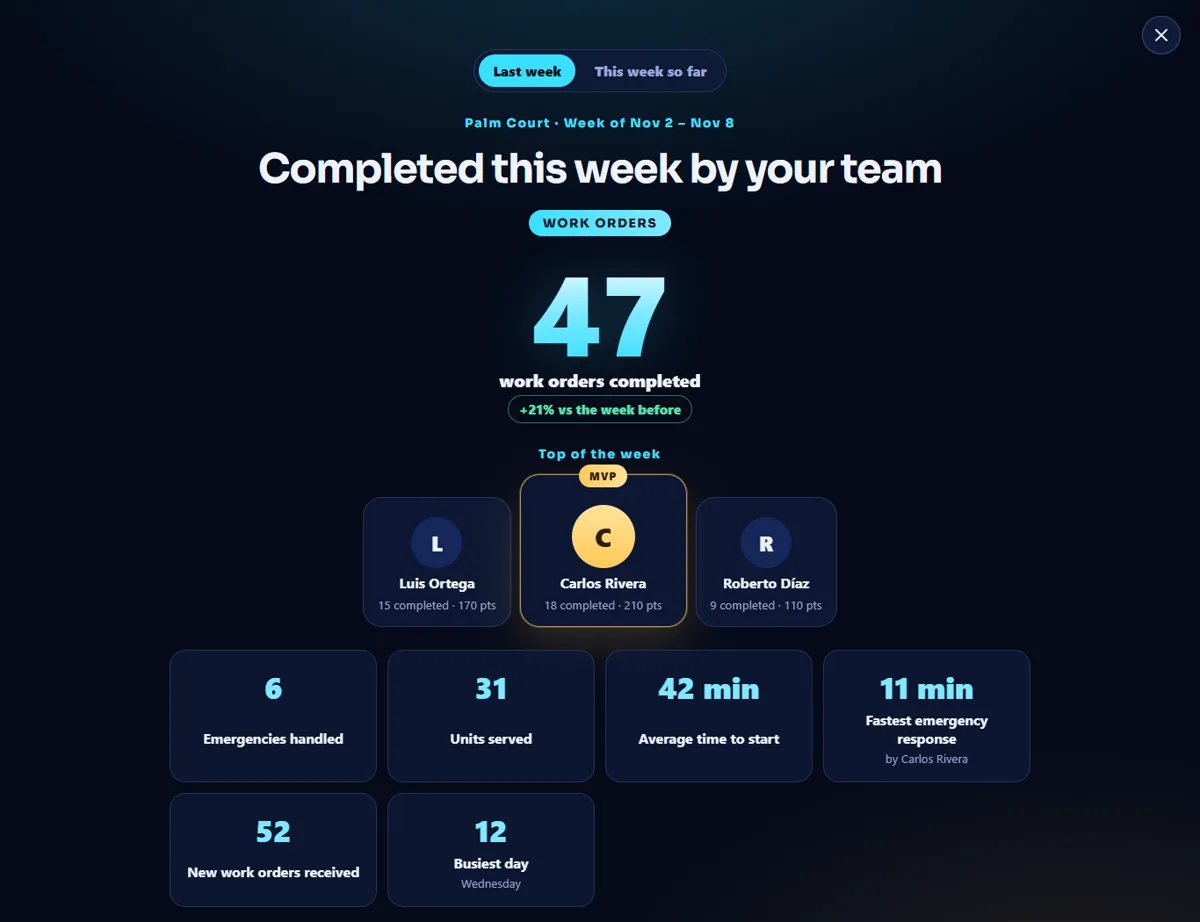
The recap is a full-screen page, in the style of a season review, called Completed this week by your team. It replaces the Monday email.
- Open it
Open the menu and tap Weekly recap. It also opens by itself on Mondays, once for each person, when last week had completed work.
- Choose the week
The two buttons at the top switch between Last week and This week so far. Weeks run from Monday to Sunday.
- Read the sections
Scroll down. Each section is made from the work of the week. The big number of a section is compared with the week before.
What each section shows
- Work orders. Work orders completed and the change against the week before, Top of the week (the three people who completed the most, with the first one as MVP), Emergencies handled, Units served, Average time to start, Fastest emergency response, New work orders received and the Busiest day.
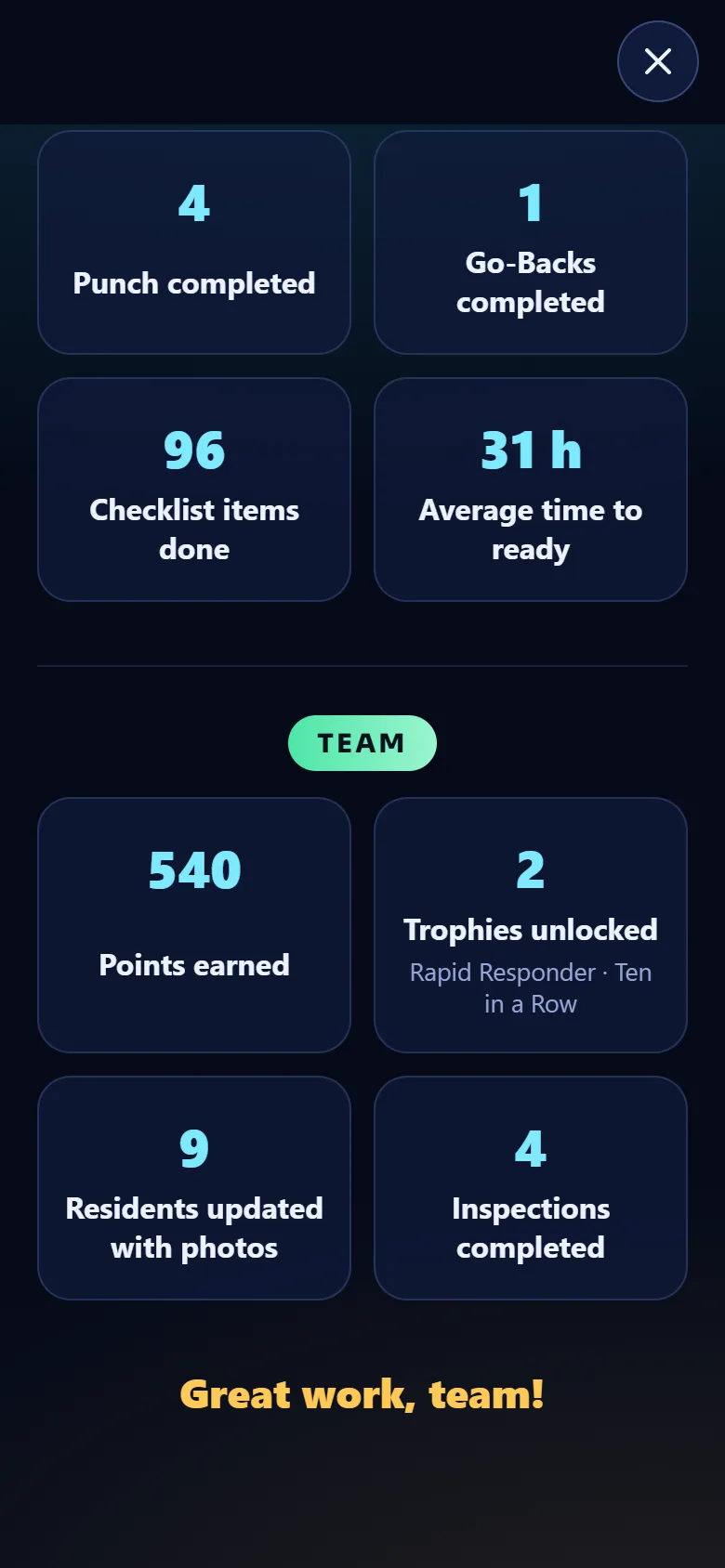
- Punch / Go-Back. Units made ready, Punch completed, Go-Backs completed, Checklist items done and Average time to ready. It shows only when Make Ready is on.
- Team. Points earned and Trophies unlocked (with Points and trophies on), Residents updated with photos (with the resident portal on) and Inspections completed (with Inspections on). A tile shows only when its number is above zero.
Tips
Share the recap in the Monday meeting. It shows the numbers the team already earned, so it is a good moment to thank the people at the top. The monthly report for the property manager level is in Monthly goals and report.
When the module is turned off
Smart alerts and the weekly recap have no switch and no card in Modules: they are always on. The parts that depend on another module disappear with it: the repeated problem alert with Recurring work orders, the Punch / Go-Back section with Make Ready, and the points, residents and inspections tiles with their modules. The numbers are kept and come back with the module.
Related guides
Ready to try it with your own property?
Create your workspace, add your property and turn on the modules you need.