Team chat
Team chat is the quick line between the office and maintenance. Send a message to one person or to the whole team, add a photo, record a voice message, or answer with one tap.
- Who sees it
- Everyone on the team of the workspace: the office, the supervisor, technicians and porters. Residents are not in the chat.
- Where to find it
- The Chat tile on the home screen and the chat button in the header. Both show a red number when something is unread.
- What it needs
- The module Team chat turned on in Modules.
What it is for
A short question should not wait for a phone call or a work order. "Is the part here?", "Nobody is home in 204", "I am on my way". Chat keeps these messages in one place, with the person's name and the time.
Send a message
- Open the chat
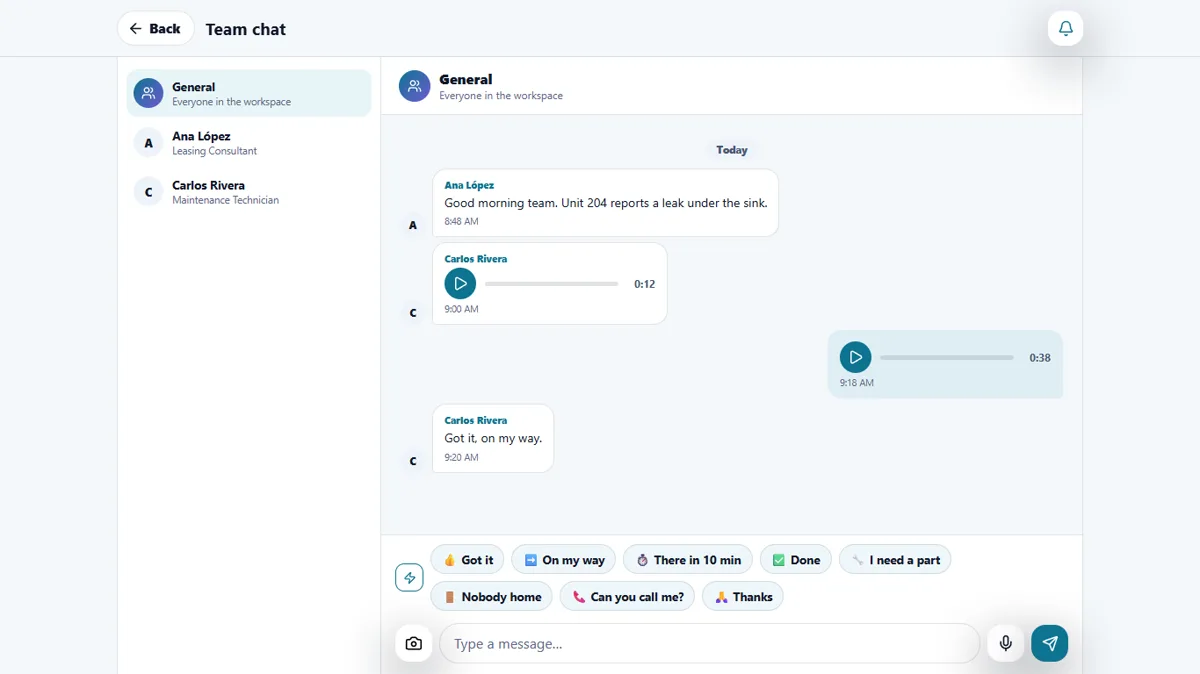
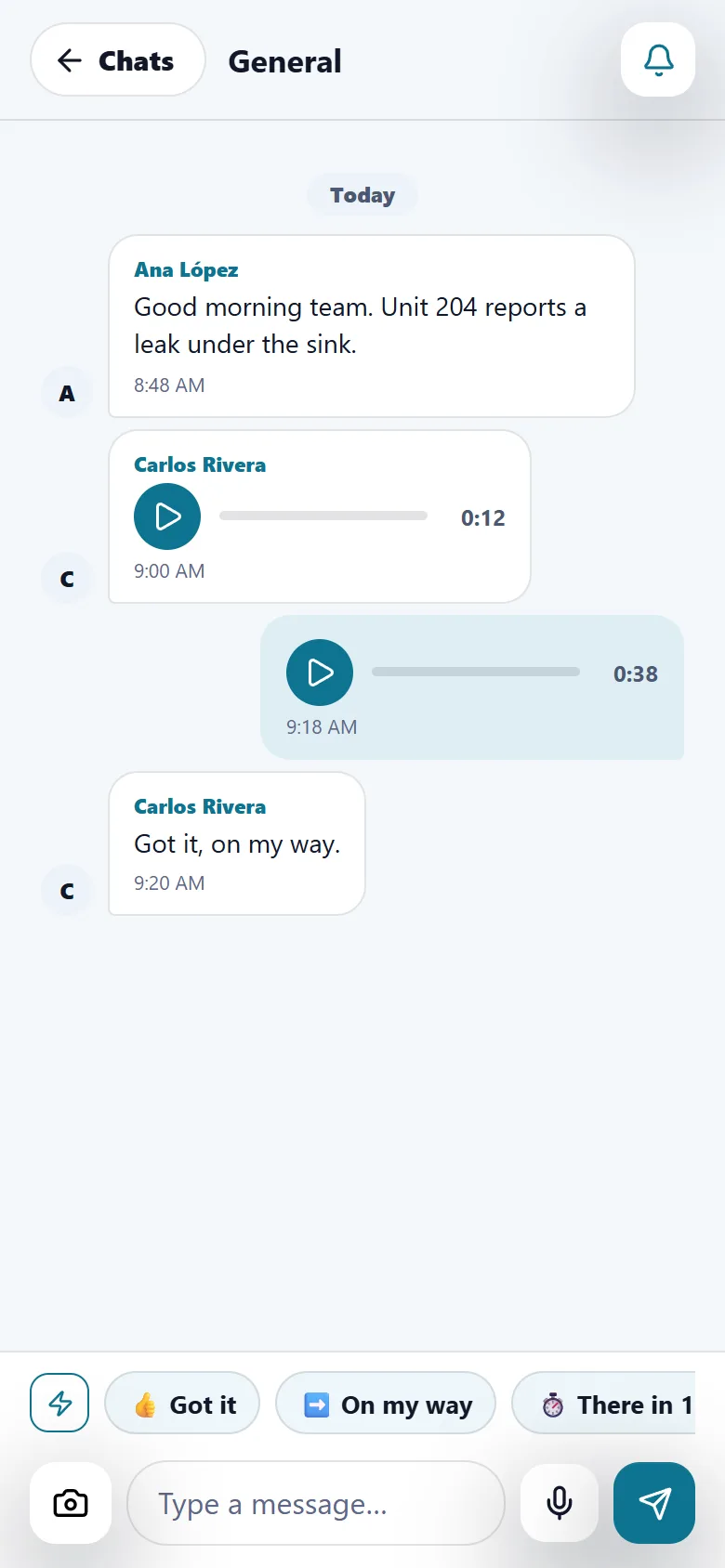
Tap Chat. The list on the left has General, which is everyone in the workspace, and then every person with their role. On a phone, tap a conversation to open it, and Back returns to the list.
- Choose who to write to
Pick General for the whole team, or a person for a private conversation. A number next to a conversation tells you how many messages you have not read there.
- Write and send
Type in Type a message… and tap the send button. Messages are grouped by day (Today, Yesterday) and each one shows the time.
- Add a photo
Tap the camera to attach a photo to your message.
Send a voice message
- Record
Tap the microphone and talk. Tap it again to stop. A recording stops by itself after 2 minutes, and a tap with nothing said is not sent.
- Listen or delete
You can throw the recording away before it goes out.
- Send
Tap send. The other person sees a player with the length of the message. The phone or computer asks for permission to use the microphone the first time.
Answer with one tap
Above the message box are quick replies: Got it, On my way, There in 10 min, Done, I need a part, Nobody home, Can you call me? and Thanks. Tap one and it is sent. To keep a phrase you use often, type it and tap Save as quick reply. Your own quick replies stay on that device.
Message the person on call
When someone is on call, the header shows who it is. Message opens a chat with that person, next to Call. See On call.
Notifications and tone
- A new message shows in the bell and makes a sound. The bell button inside the chat turns the chat sound on or off on your device.
- Before a typed message goes out, the app may ask you to read it again if it looks sarcastic or is written in capitals. It never blocks: Send anyway sends the same text. Voice messages and quick replies are not checked.
- Insults are refused by the server, so the chat stays respectful.
Tips
Use General for what everyone needs to know, and a private conversation for the rest. If a message is about a specific order, say the apartment number or the order, so the next person finds it later.
When the module is turned off
The Chat tile and the chat button in the header disappear, and the Message button next to the person on call is not shown. Messages that were already sent are kept and come back when the module is turned on again.
Related guides
Ready to try it with your own property?
Create your workspace, add your property and turn on the modules you need.