Account settings
These are the settings that belong to you: your profile, your language, the colors and button size you like, which alerts reach you, and how you sign in. Each person changes their own settings.
- Who sees it
- Everyone who signs in with an account, on the phone and on the computer. Each person only sees and changes their own settings.
- Where to find it
- Open the menu (the three lines at the top right), then Profile. Most choices are in Settings.
- What it needs
- Nothing. This part is always on and has no switch.
Where everything is
The Profile screen shows your name and position at the top and one card for each area: My account (name, phone, photo and emergency contact), Settings (colors, themes, notifications, language, security and help) and Help & support. Depending on your position it also shows cards such as My workspace or Subscription & payment, which other guides cover. The menu has a Dark mode switch and Sign out.
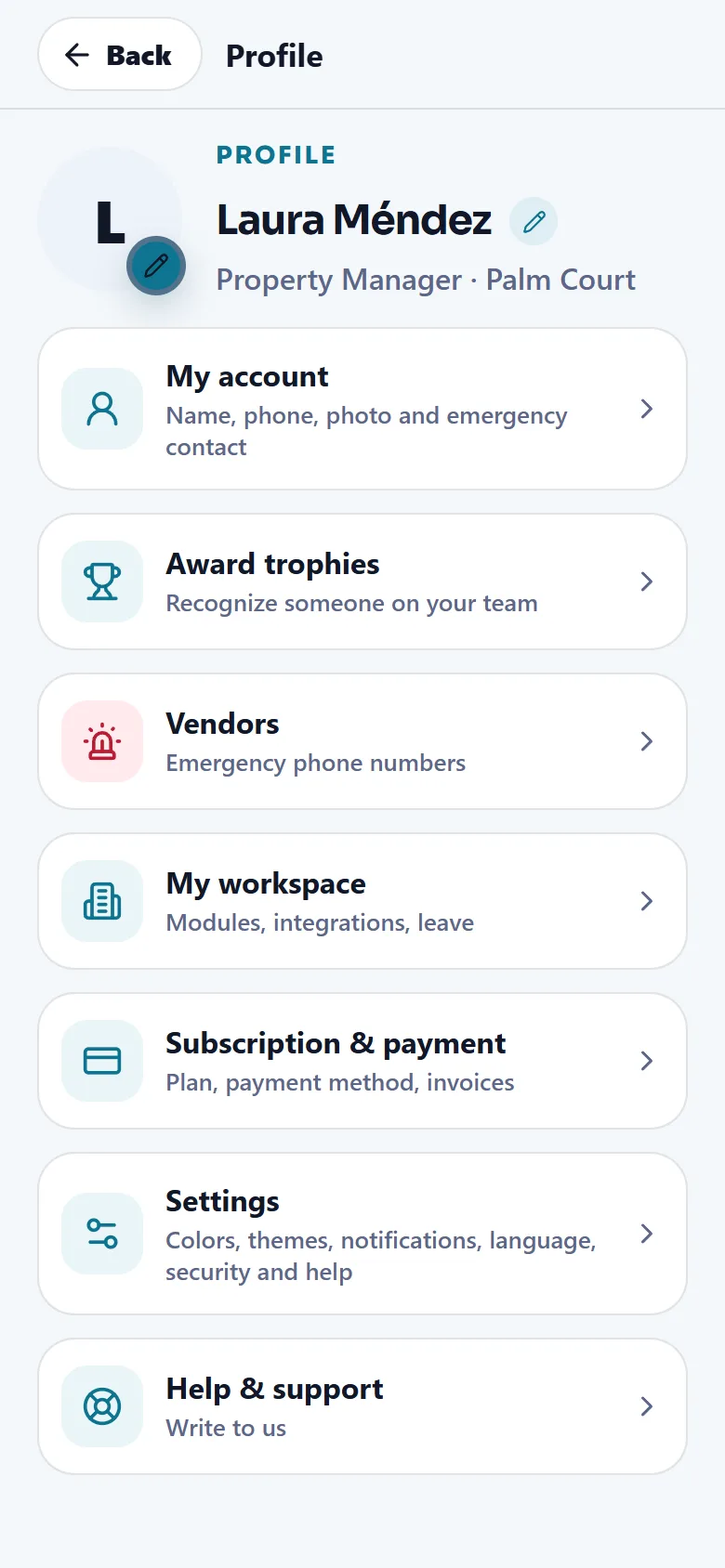
Change your profile
- Open My account
Menu, Profile, then the My account card.
- Change what you need
Tap Change profile photo to pick a new picture. Edit Full name and Phone in the form.
- Save
Tap Save profile.
Language, colors and button size
- Pick your language
Settings, Language, then English or Español. The whole app, your emails and the weekly recap use it. Each person chooses their own, so one team can work in both languages.
- Pick your colors
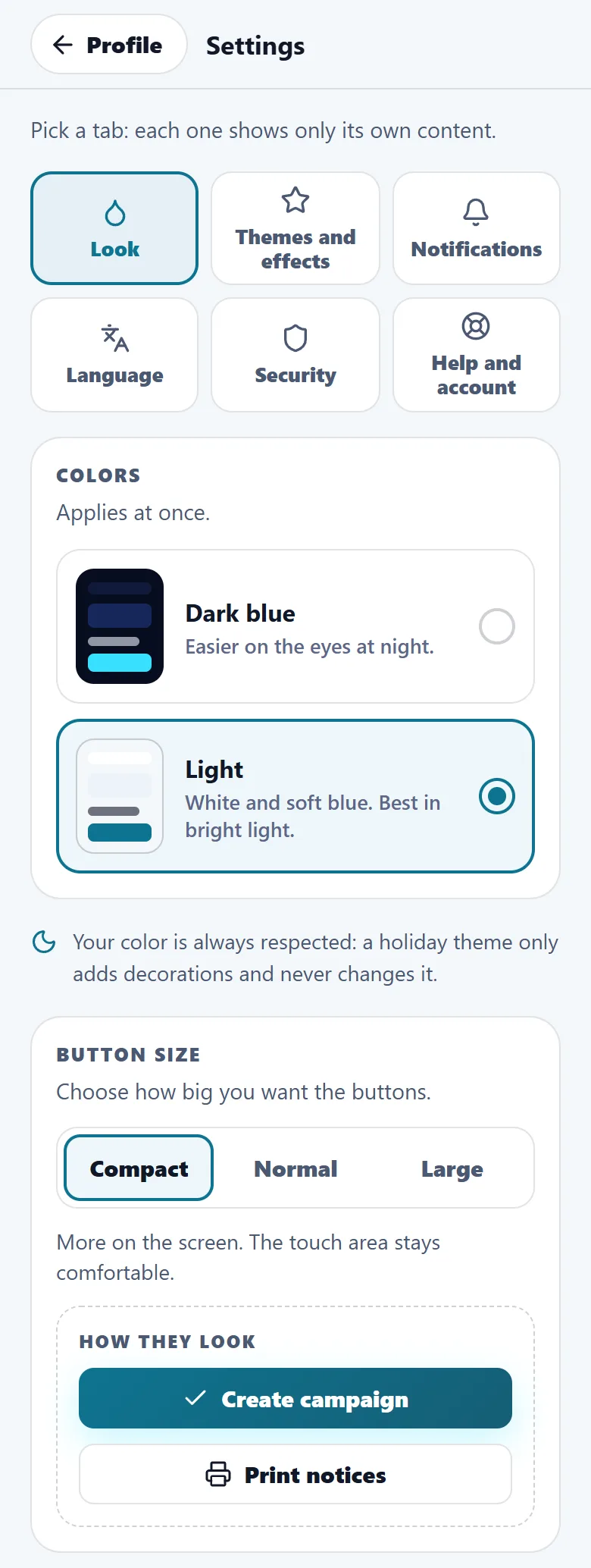
Settings, Look, then Dark blue (easier on the eyes at night) or Light (best in bright light). It applies at once. The Dark mode switch in the menu does the same.
- Pick your button size
Under Button size choose Compact (the default, more on the screen), Normal or Large (for working with gloves). A preview shows how the buttons will look, and the choice stays on that device.
- Try a holiday theme (optional)
Settings, Themes and effects. A theme only adds decorations on top of your color and never changes it.
Choose which alerts reach you
- Open Notifications
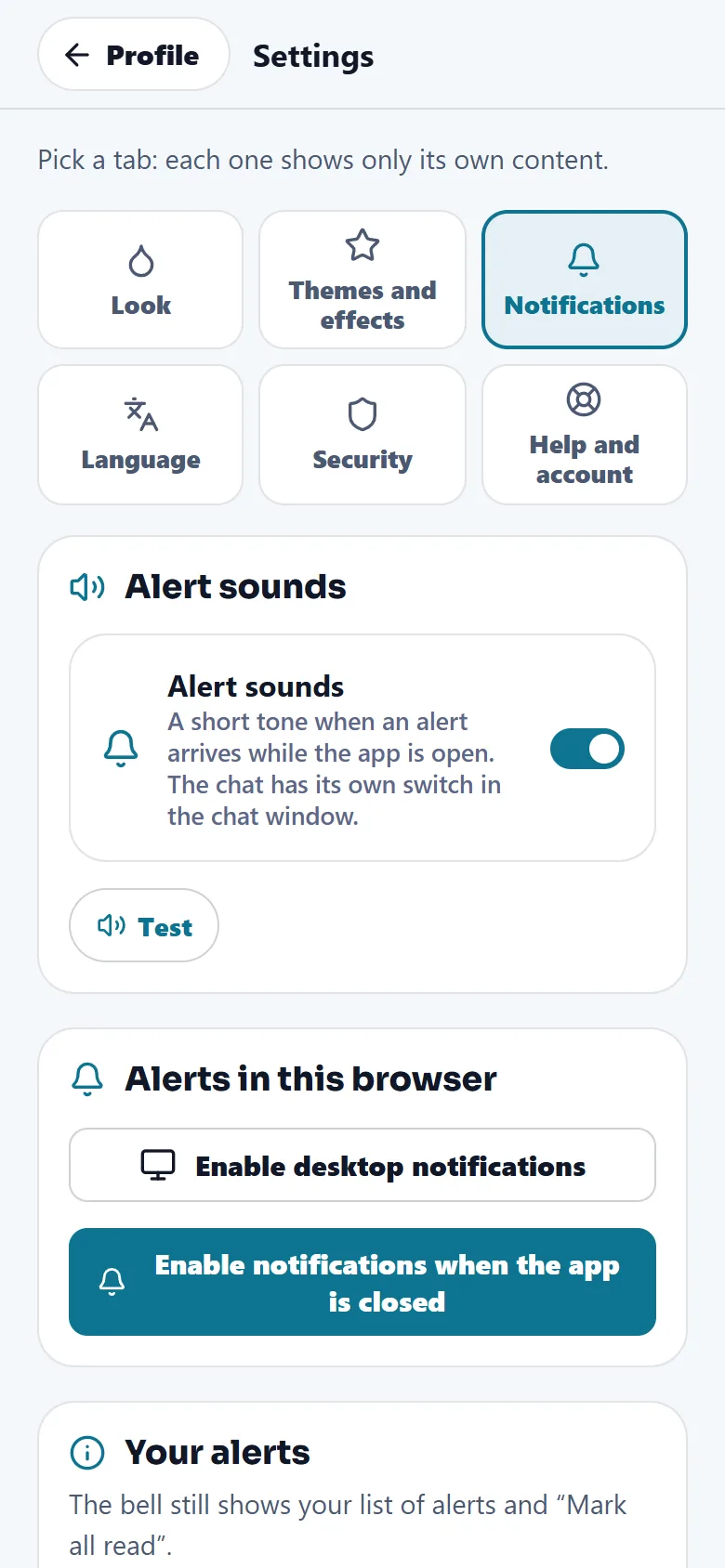
Settings, then Notifications.
- Alert sounds
The Alert sounds switch plays a short tone when an alert arrives while the app is open. Tap Test to hear it. The chat has its own switch in the chat window.
- Alerts when the app is closed
Under Alerts in this browser, tap Enable desktop notifications or Enable notifications when the app is closed. Your browser or phone asks for permission first. If you blocked it there, allow it in the browser settings. Once it is on, Send me a test alert sends a real alert so you can check that it arrives. That button only shows for people who receive work alarms.
- Read your list
The bell at the top still shows your alerts and Mark all read. Alerts are deleted automatically after 30 days.
Sign in safely
- Your 4-digit PIN
The app asks you to create a personal 4-digit code (PIN) and asks for it when you sign in. It is also asked before sensitive changes, such as turning on the fingerprint. Do not use your bank PIN. After too many wrong tries it locks for a while.
- Fingerprint or face recognition
On a supported phone, the app offers once, after you sign in, Sign in with your fingerprint next time? Tap Turn it on, or Not now. You can also use Enable biometric sign-in on this device in Settings, Security. The app asks for your PIN first, and may ask for your password to confirm it. Your fingerprint never leaves the phone and the app never receives it. Next time, tap Use fingerprint or face recognition on the sign-in screen.
- 2-step verification
In Settings, Security, the 2-step verification card shows whether it is On. It is required for every position except technician, and optional for technicians. To turn it on, tap Turn on 2-step verification, add the account to an authenticator app on your phone and type the 6-digit code it shows. From then on, signing in with your password also asks for that code. Replace my authenticator app changes the app, and it needs the code from your current one.
- Lost your phone?
Sign in with your fingerprint if you had confirmed it, or ask your boss to reset your 2-step verification. A code is sent to your email and you choose a new password.
- Sign out everywhere
In Settings, Security, tap Sign out everywhere to end your session on every phone and computer at once, this one included. Use it if you lost a phone or think someone else used your account.
Never share your PIN, your password or your 6-digit code with anyone.
Updates and the speed test in the phone app
In the phone app, Settings has an About this app row. It opens three cards:
- This app shows the version and build number of the app, your phone model and your language.
- Updates has Check for updates. If a newer version exists, an Update button appears. Otherwise it says You have the latest version.
- Internet speed test has Run speed test. It measures how fast the phone downloads, using about 2 MB, and sends nothing about you. It shows the response time and the download speed, and tells you when the connection is slow.
If screens load slowly in the field, run the speed test first. A weak connection is the most common reason.
Sign out, or delete your account
- Sign out
Menu, then Sign out. If your phone receives alerts, the app first asks Sign out?, because this phone will stop receiving them, emergencies included. Tap Stay signed in or Sign out anyway.
- Delete your account
Settings, Help and account, then Delete my account. It erases your account and your personal information, and your employer keeps its work records without your name. On the website, Request deletion opens the Delete your account page.
Related guides
Ready to try it with your own property?
Create your workspace, add your property and turn on the modules you need.