3D buildings
Each building in 3D, with its air conditioners, condensate drains, main water shut-offs, hose taps and fire alarms placed where they really are. Every marker is linked to its own work orders, so the team finds the right equipment fast.
- Who sees it
- Everybody on the team can look at a building. The owner, the manager, the property manager, the maintenance supervisor and the person left in charge can set it up and place equipment. The assistant property manager, leasing, technicians and porters read only.
- Where to find it
- Buildings › open a building › View in 3D. Also View in the 3D building inside a work order.
- What it needs
- The module 3D buildings turned on in Modules. It is off until a manager turns it on.
What it is for
"Which air conditioner is it?" and "where is the main water shut-off of this building?" are questions every maintenance team asks. The 3D view answers them with a picture: the building, its equipment as markers, and what happened to each one.
Look at a building
- Open the building
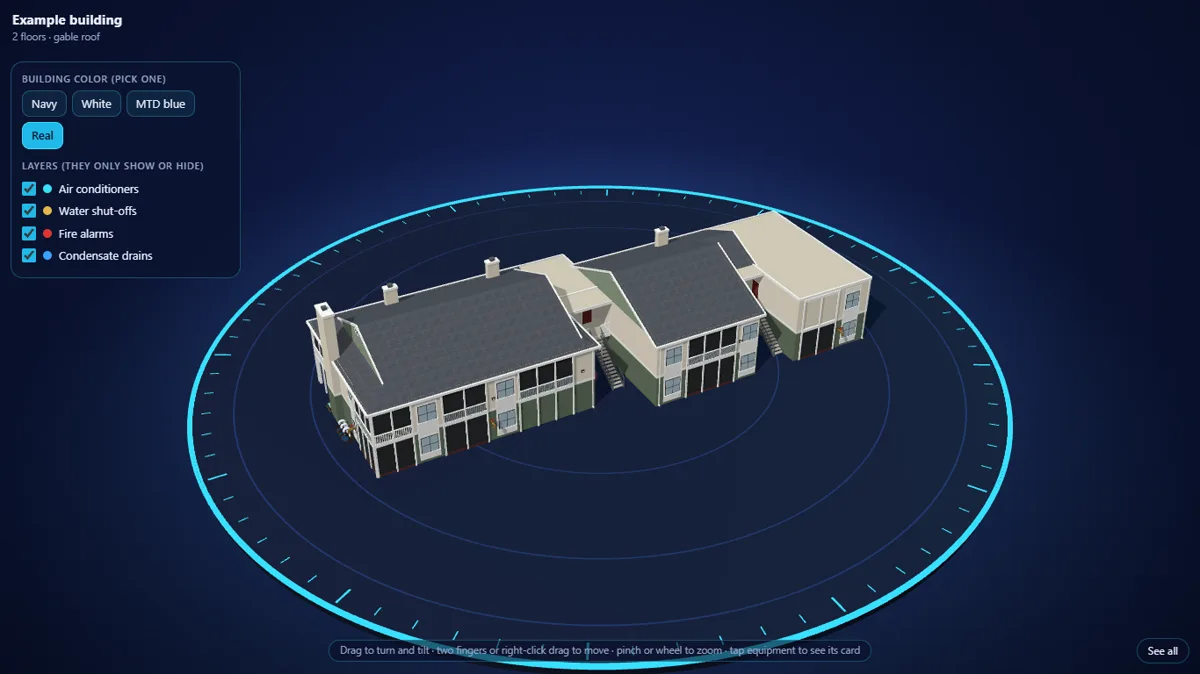
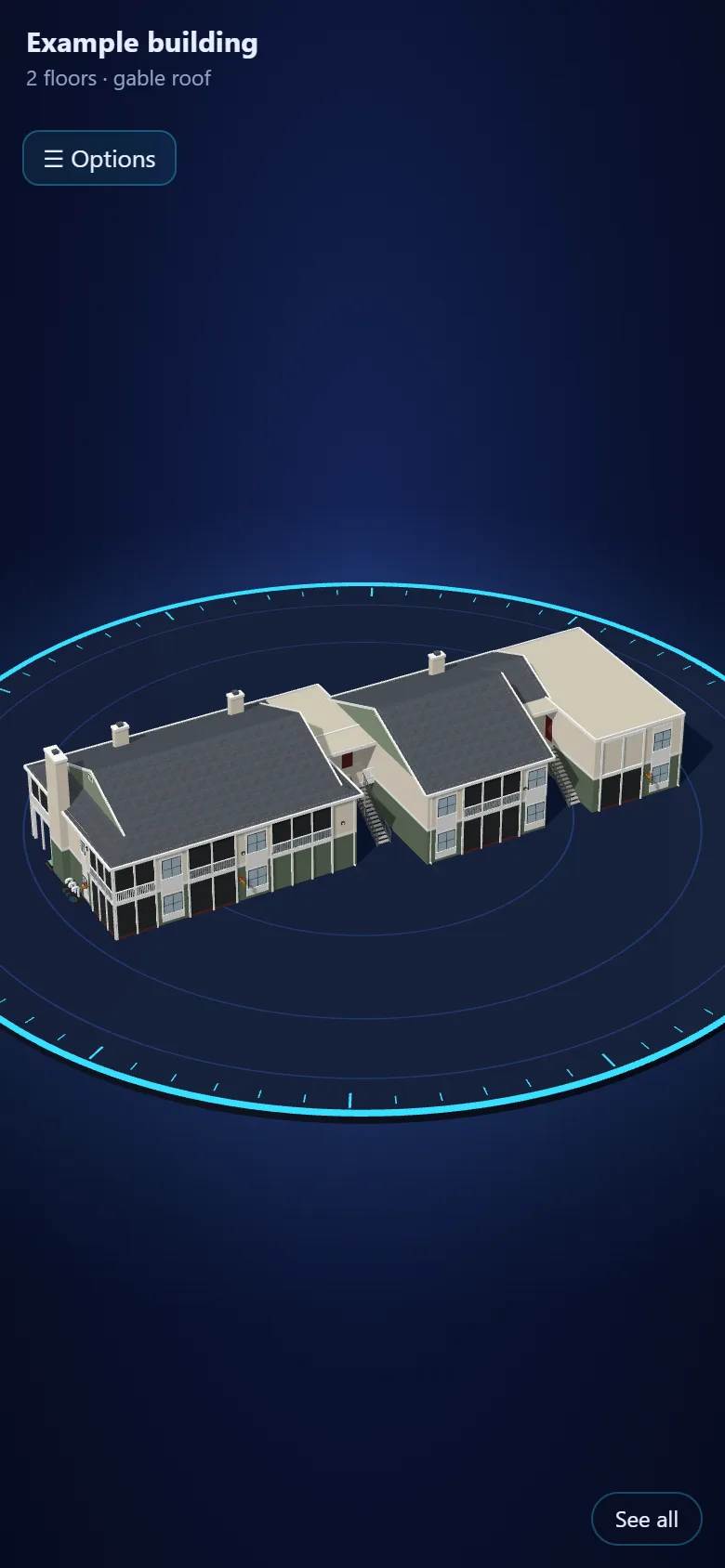
In Buildings open a building and tap View in 3D. The title says how many floors it has and what kind of roof.
- Move the camera
Drag to turn and tilt. Use two fingers, or drag with the right mouse button, to move. Pinch or use the wheel to get closer or farther. See all shows the whole building again.
- Choose what to show
Open Options. Pick the building color, then switch layers on or off: Air conditioners, Water shut-offs, Fire alarms, Condensate drains. Layers only show or hide.
- Tap a marker
The card shows what it is, where it is (the wall or the roof), the apartment it serves and its history of repairs and checks. A main water shut-off says it shuts off the whole building. A hose tap says it does not.
Open the 3D building from a work order
- Open the order
When an order belongs to a building that has a 3D model, the order shows View in the 3D building.
- See what needs attention
The building opens pointing at the equipment the order probably talks about. For example, "my air is frozen" points at that apartment's air conditioner, and snow shows on it while the order is open. If the words do not say which equipment, the building opens without pointing at anything and says so.
- Create an order from a marker
The office and the supervisor can tap a marker and choose Create work order. Technicians and porters can look but not create.
Set up a building
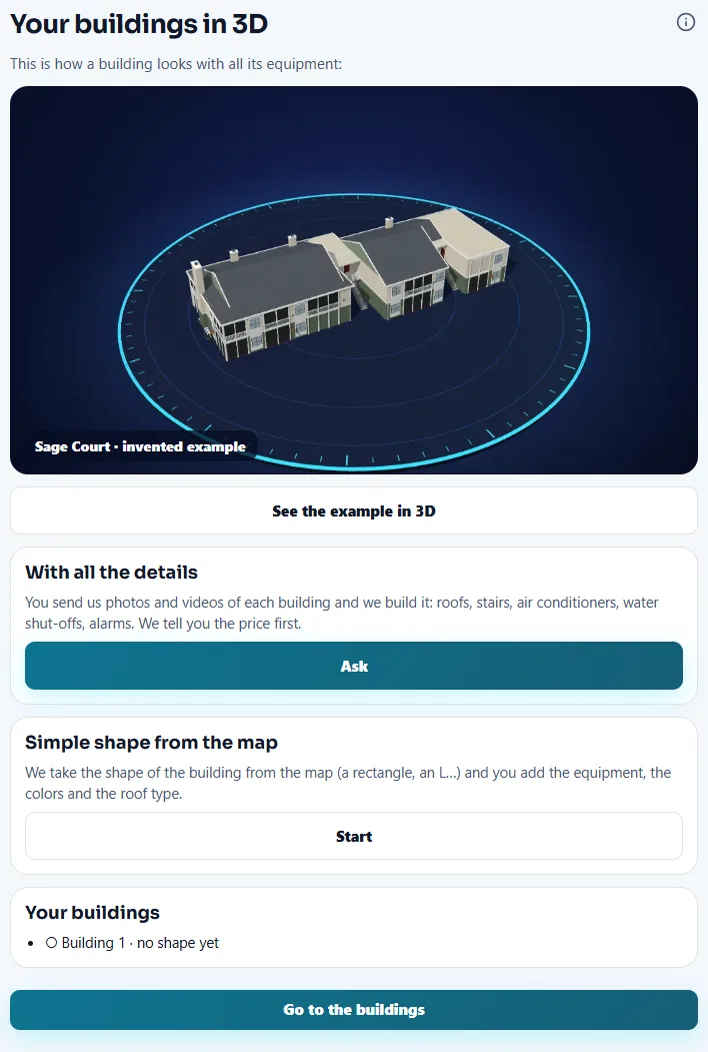
Only people who may change buildings see these options. With the module on, the set-up guide of Buildings ends with a 3D introduction that offers three ways to start.
- See the example
See the example in 3D opens Sage Court, an invented building with sample equipment. It is view only: nothing is saved and nothing is sent.
- Ask us for all the details
Under With all the details tap Ask. You send photos and a video of each building and we build it with its roofs, stairs and equipment. The list says what we need: the sign with the building number, each side, each corner, each stairway, the roof seen from the ground, the equipment up close and one video walking around the building. No people and no car plates should appear. We tell you the price first.
- Start with a simple shape from the map
Under Simple shape from the map tap Start. The shape of the building comes from the public map (a rectangle, an L). You choose the floors and the roof (flat, two slopes or four slopes), confirm the draft, and then add the equipment, the colors and the roof type yourself. Scan buildings finds the outlines around the property.
To place equipment, open Options › Edit equipment, choose a tool (air conditioner, main water shut-off, hose tap, fire alarm or condensate drain) and tap the building. Air conditioners and drains ask for the apartment. A drain links itself to the air conditioner of the same apartment.
Tips
Run the set-up guide of Apartments and buildings first, so every apartment has its building. Then place the main water shut-off of each building first: it is the marker you will want in an emergency. A probable location is labeled as such, so confirm it with your team.
When the module is turned off
View in 3D, Equipment, Buildings in 3D and View in the 3D building in orders disappear, and the server refuses every 3D request. The models you already made are kept and come back when the module is turned on again. The Buildings tile, the apartments, their floors, notices to a building and the apartment histories keep working.
Related guides
Ready to try it with your own property?
Create your workspace, add your property and turn on the modules you need.