Events and calendar
Events and Calendar give the property one shared place for team notices, resident events and important dates: inspections, deadlines, maintenance days and office events.
- Who sees it
- Everybody on the team reads Events and Calendar. The office, the leasing team and the maintenance supervisor can publish. Technicians and porters read only.
- Where to find it
- The Events and Calendar tiles on the home screen.
- What it needs
- The module Events & Calendar turned on in Modules. Resident dates also need the Resident portal.
What it is for
"The pest company sprays Building B on Wednesday." "Neighbors breakfast on Thursday." "Fire inspection on the 26th." One calendar keeps the team and the residents on the same page, and a notice board keeps the things nobody should miss.
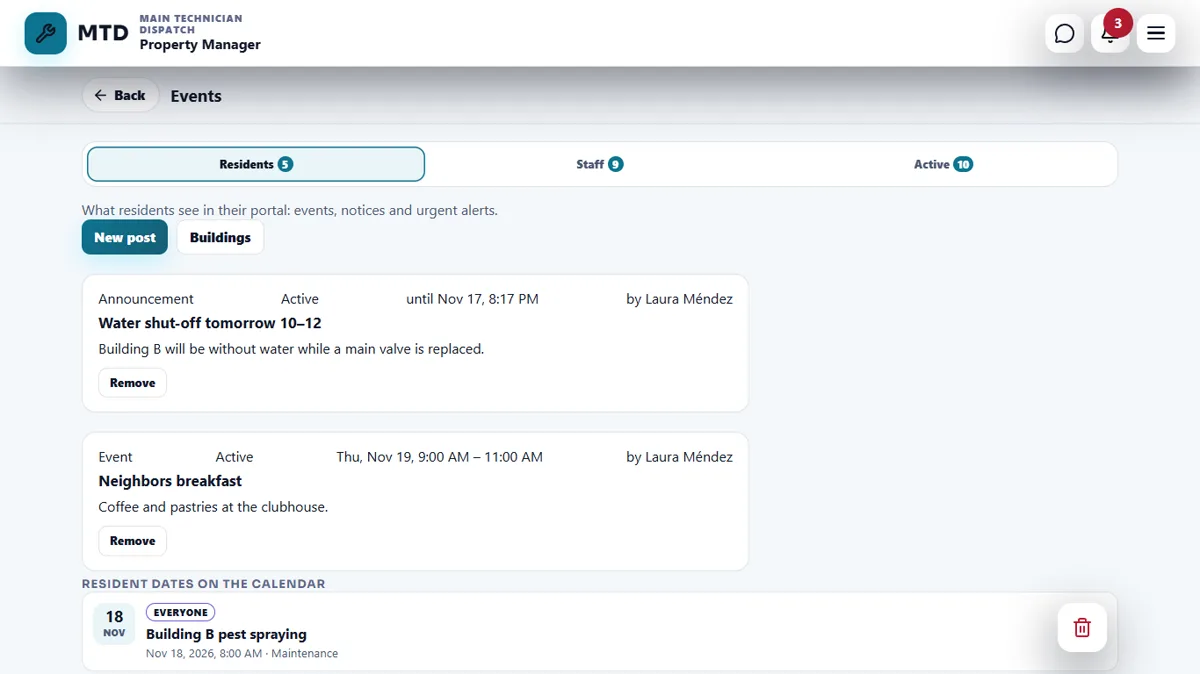
Read the Events window
Open Events. It has three tabs, each with a number.
- Residents shows what residents see in their portal: events, notices and urgent alerts, and the resident dates on the calendar.
- Staff shows the team notices and the upcoming team dates.
- Active shows everything that is happening now or coming up, for residents and for the team.
Publish a team notice
- Open the Staff tab
In Events open Staff and tap New notice.
- Write it
Add a Title and the Announcement. Choose the Audience: Everyone, Maintenance or Office.
- Pin it if it matters
Turn on Pin as important. The notice shows an Important label on the Notice board.
- Publish
Tap Publish announcement. The person who wrote a notice can delete it.
Add an event to the calendar
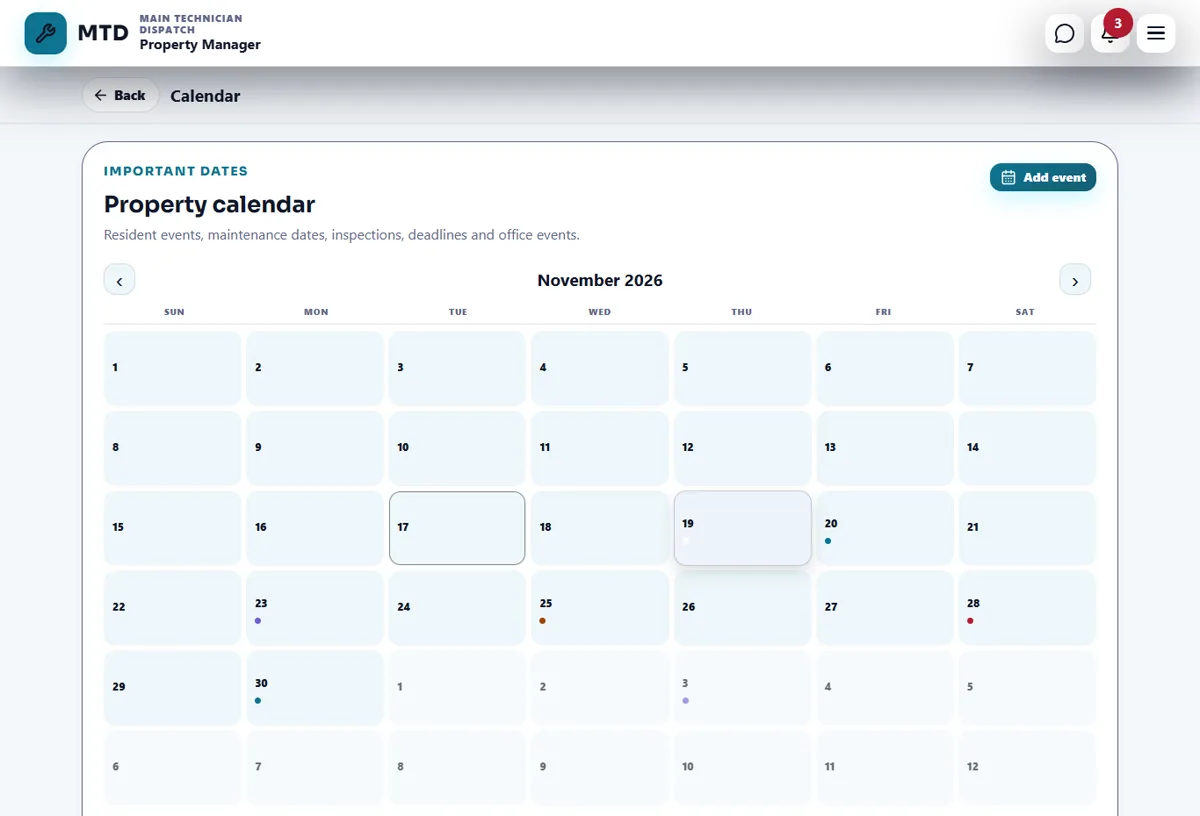
- Open the Calendar
Tap Calendar. The month shows a colored dot on each day with something. Tap a day to read what is scheduled. The arrows change the month.
- Tap Add event
Write the Event title and a Description if you want. Choose the Event type: Maintenance, Entertainment & recreation, Inspection, Deadline, Office or Other.
- Choose who sees it
Under Audience pick Residents, Staff or Residents + staff.
- Set the time
Choose when it Starts and, if you want, when it Ends, or turn on All-day event. Then tap Add to calendar.
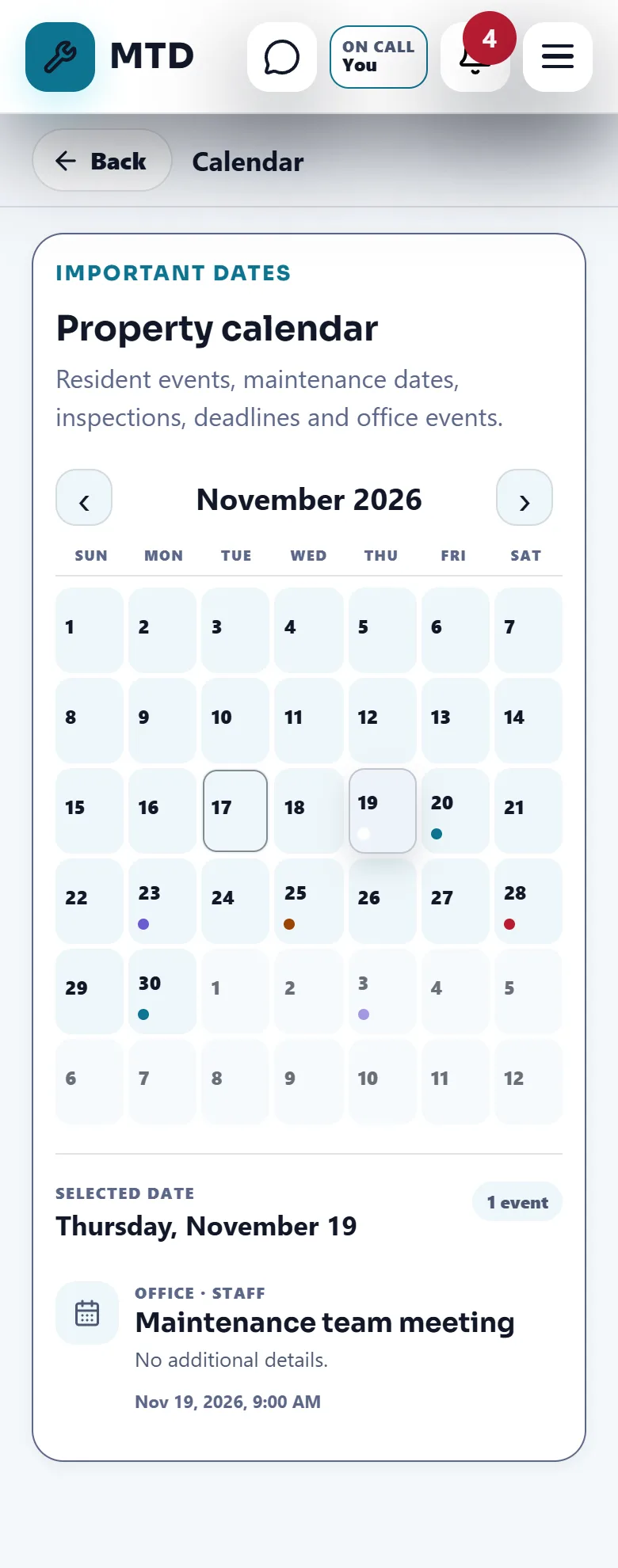
What the team sees
A technician or a porter opens Events and Calendar to read what is coming: the notices for maintenance or for everyone and the dates for staff. They cannot publish.
Events and notices for residents appear in their portal. When the Resident portal is off, the app says that those dates are only seen by the team. To publish alerts, shut-offs or notices to one building, see Resident announcements and events.
Tips
Put inspections and deadlines on the calendar the day you know them. A date that only lives in somebody's head is the one that gets missed.
When the module is turned off
The Events and Calendar tiles disappear for everyone. Notices and events already published are kept and come back when the module is turned on again. Resident notices, shut-offs and alerts are managed in the Resident portal and do not depend on this module.
Related guides
Ready to try it with your own property?
Create your workspace, add your property and turn on the modules you need.