Map
The Map shows the property with its boundary, the zones of each worker and the icons that matter: pools, dog stations, dumpsters and more. For safety, managers can also see the team while they are on shift, if each person agreed first.
- Who sees it
- The office and the maintenance supervisor see the Map tile. Technicians see My map: only themselves and their own zone. Residents see only the places you turn on for them.
- Where to find it
- The Map tile on the home screen. Technicians: My map under My day.
- What it needs
- The module Map turned on in Modules. It is off until a manager turns it on. Seeing the team on the map also needs the Time clock.
What it is for
A map answers "who takes care of this?" and "where is everyone?". Each zone belongs to a worker. Each icon, such as a dog station or a dumpster, can have a check every day or every few days. Residents can see which pools are open.
Draw the property
- Set the property map
Open Map. If the property has no map yet, tap Set property map, type the address and tap Search, or use your location. Tap the map to place at least 3 flags around the property, then Save map. That is the Boundary.
- Draw a zone for each worker
In Edit map › Zones tap New zone, choose the worker and a color, and tap the map to draw the zone with flags (at least 3). A zone can be strong or almost invisible. The Magnet makes flags stick to the other zones and the boundary.
- Add icons
In Icons choose what to add and tap the map where it is: Pool, Drain, Dog station, Irrigation box, Lake fountain box, Lift station, Dumpster, Compactor or a Custom icon with its own name.
- Say who checks it, and how often
Each icon can be assigned to a person, or By zone, so the owner of the zone takes care of it. Choose Every day or every few days. The map shows when it was last checked and flags Due today.
When the workspace has a maintenance supervisor, the supervisor draws the zones and the icons, and the office sees a note saying so. The map has layer switches, Boundary, Zones and Icons, to show or hide each part.
See the team on the map
The On shift list shows who is sharing their location. A green dot with Live means the phone is sending now. A gray dot with the time means the last known position. Someone outside the boundary is marked Outside the property. Use 2D and 3D to change the view.
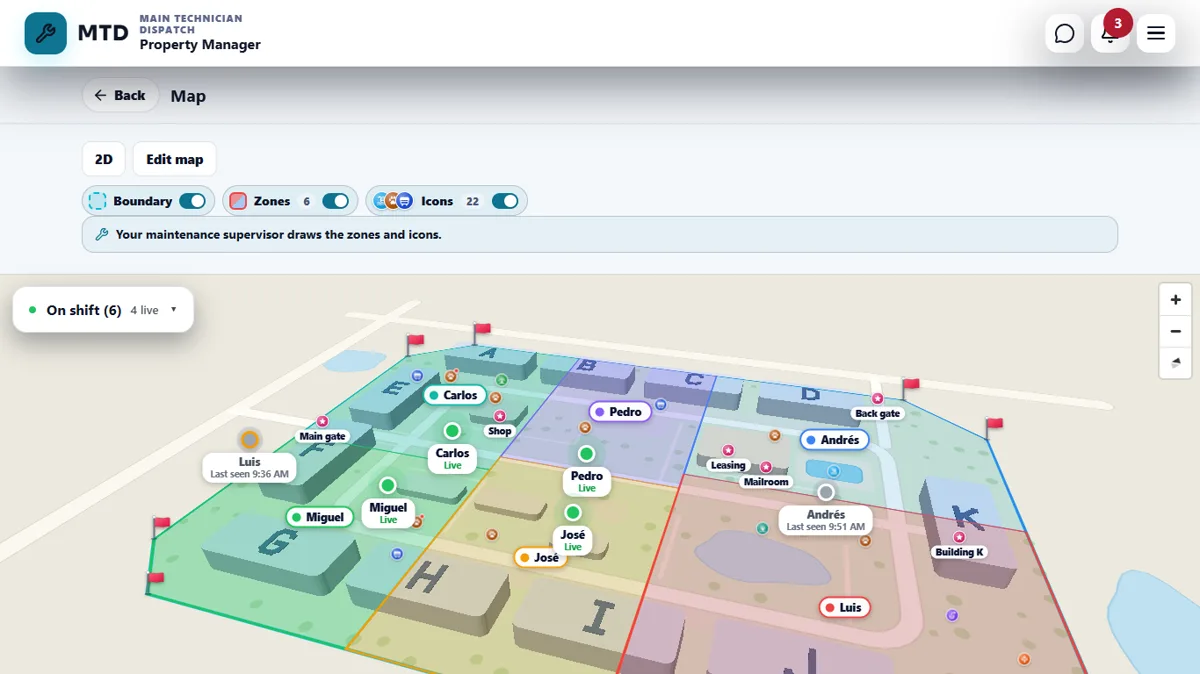
Seeing the team is only for safety. Each person reads a notice and agrees first (Agree and share); they can stop any time in Profile › Settings › Security › Privacy. A position is shared only while the person is clocked in: it stops at lunch and at clock-out, and the latest position is deleted at lunch, at clock-out and after 16 hours at most. It is never used to watch breaks or to follow someone off duty. Only the managers and supervisors of the workspace see it.
My map for technicians
- Open My map
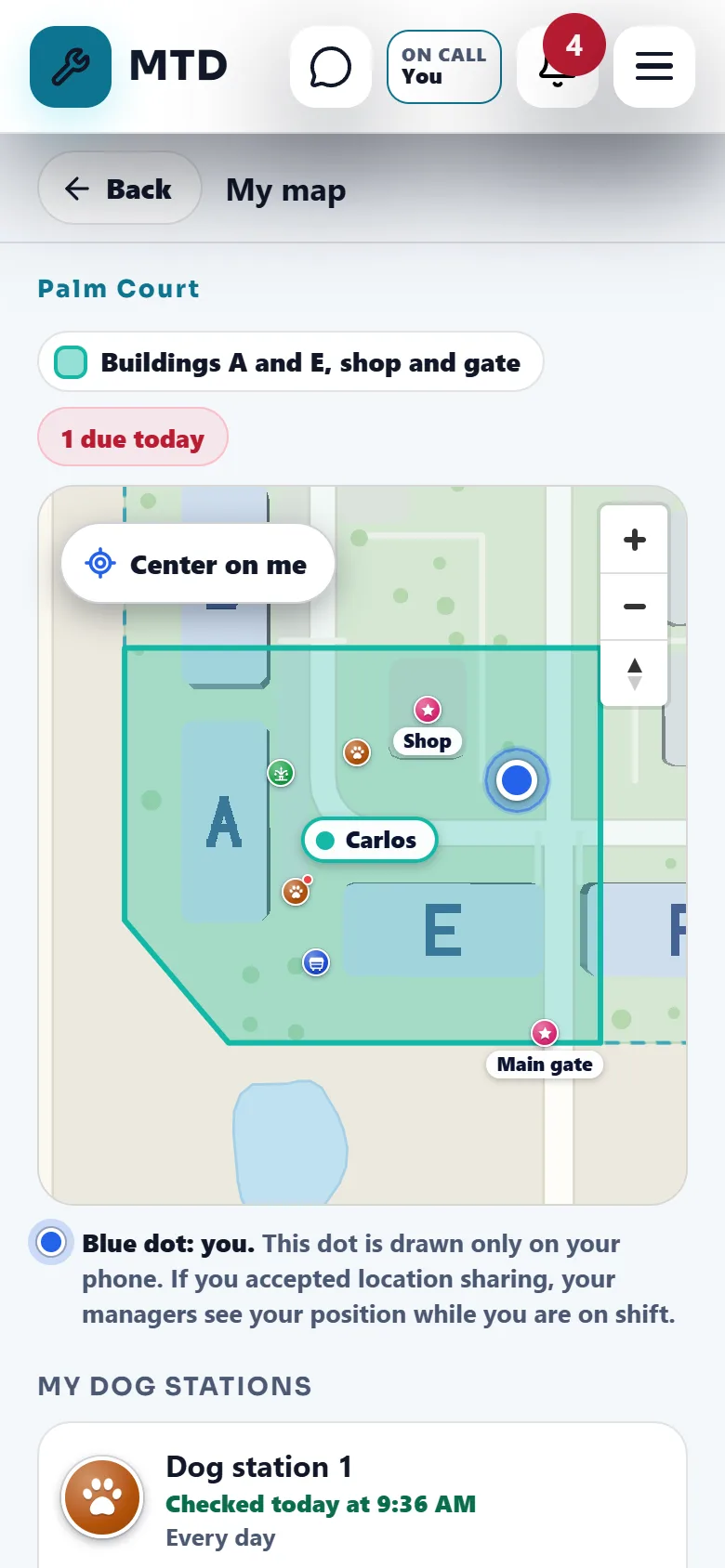
Tap My map. You see the property, your zone and the icons in your care, such as My dog stations.
- Find yourself
A blue dot shows where you are. It is drawn only on your phone. Tap Center on me if it is out of view.
- Mark what you checked
Tap an icon and mark it Checked. When all are done the map says All checked. Thank you!
Choose what residents see
- Open For residents
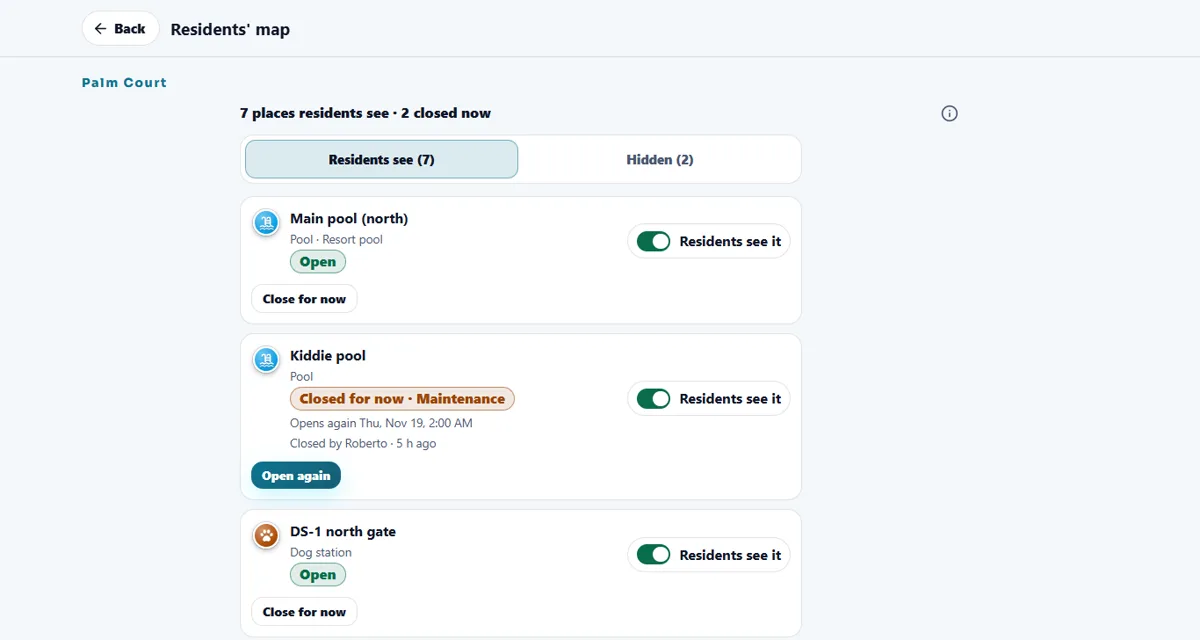
On the Map tap For residents. The window is called Residents' map.
- Turn places on
For each pool, dog station, dumpster or place of your own, switch on Residents see it. You can give it a name residents see and its hours.
- Close a place for now
Tap Close for now, say why and, if you want, the date it opens again (within 6 months). Without a date it stays closed until you tap Open again. Nobody gets a notification.
Residents see these places in the Map tab of their portal, with the name, the hours and whether it is open. Drains, irrigation boxes, lake fountain boxes, lift stations, zones and people are never shown to residents.
Tips
Draw one zone per worker and make sure every icon falls inside a zone: the editor warns about an icon outside the zones or a zone with no one assigned.
When the module is turned off
The Map tile and My map disappear, nobody's position is shared and the residents' Map tab is not shown. The boundary, zones and icons are kept and come back when the module is turned on again.
Related guides
Ready to try it with your own property?
Create your workspace, add your property and turn on the modules you need.