Equipment
Equipment keeps track of the temporary equipment your team leaves in apartments while a repair is pending: portable A/C, fans, heaters and dehumidifiers. You always know what is where, who left it, and when it was picked up.
- Who sees it
- Everybody in the office can look at the list, read-only. The maintenance supervisor and the technicians register equipment and confirm pickups.
- Where to find it
- The Equipment tile on the home screen, with a number for the equipment installed now. Also inside the work order of an apartment.
- What it needs
- The module Equipment turned on in Modules.
What it is for
A portable A/C left in an apartment on Friday is easy to forget. Equipment saves it with the apartment, the person who installed it, the date and the work order it came from, and keeps it on the list until the pickup is confirmed.
Register equipment you leave in an apartment
- Open the work order
In the work order of the apartment you will see Did you leave temporary equipment in this apartment? If your notes mention a portable A/C, a fan, a heater or a dehumidifier, the app suggests it: Your notes mention temporary equipment. Confirm if you left it.
- Say yes and describe it
Tap Yes, I left equipment. Choose the Equipment type: Portable A/C, Fan, Heater, Dehumidifier or Other equipment. Add its name or number, such as Portable A/C #3.
- Send the work order
When you send the order, the equipment is saved with the apartment, who installed it, the date and the order. If you did not leave anything, tap No.
Follow the equipment and confirm the pickup
- Open Equipment
The list is called Track your equipment, with a number for what is installed now. Each row shows the equipment, the unit, the property, who installed it, when, and the work order. A small label counts the days: today or 4 days ago.
- See the pickup
When a pickup was requested, the row says Pickup requested with the work order of the pickup.
- Confirm it was removed
The maintenance supervisor taps Confirm removed and confirms that it was physically removed from the apartment. When a pickup is requested, the question Was the fan removed from Unit 117? offers Yes, removed and No, still installed.
- Add one by hand
Tap Add equipment, choose the type and the apartment and, if you want, a name. Use it for equipment that was left without an order.
- See what was removed
Tap Show removed to see the history with who removed it and when.
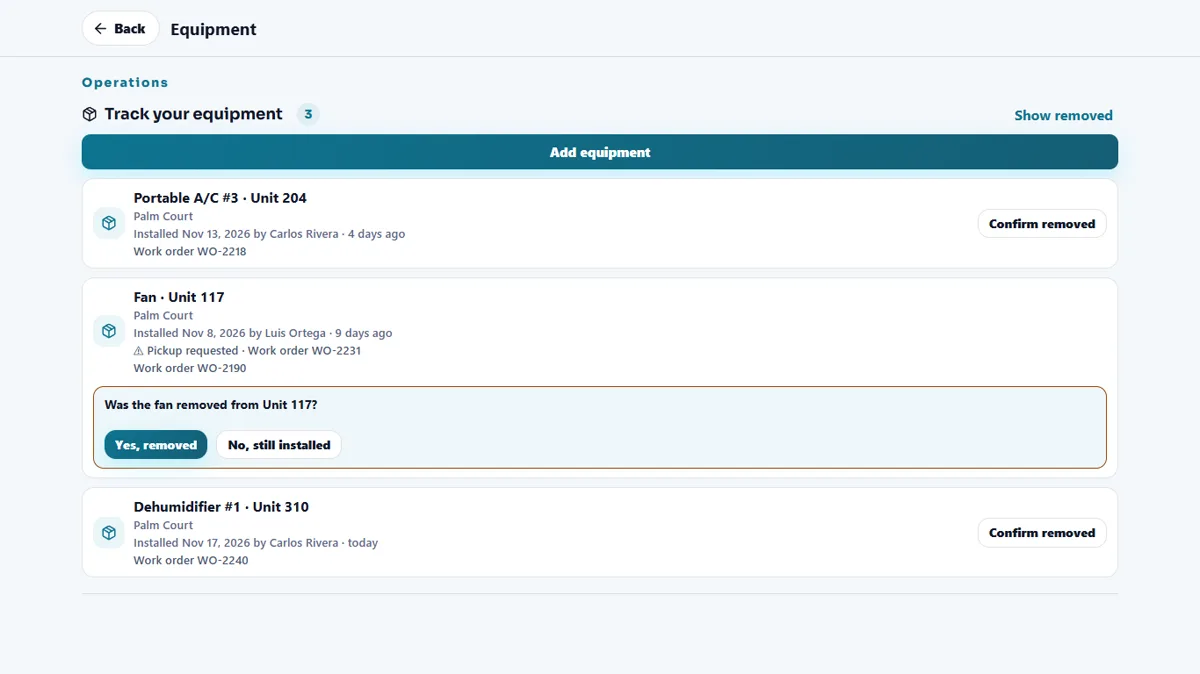
Active equipment shows on each work order of that apartment under Temporary equipment in this apartment, so the next technician knows it is there.
Tips
Give every piece a number (A/C #3, Fan #2) and write it on the equipment. Then the list and the apartment always agree. Check the list once a week: anything installed for many days is a repair that is taking too long.
When the module is turned off
The Equipment tile disappears, and work orders stop asking about temporary equipment and stop showing it. The equipment already registered is kept and comes back when the module is turned on again.
Related guides
Ready to try it with your own property?
Create your workspace, add your property and turn on the modules you need.