Reminders
Reminders are short messages for your team, such as “Check the grounds” or “Lock the pool restrooms”. They go out when the person clocks in or at a set time, and each person taps Done.
- Who sees it
- The owner, the manager, the property manager, the assistant property manager and the maintenance supervisor create and manage reminders, and see who has already tapped Done. The people a reminder is for receive it and tap Done.
- Where to find it
- The Reminders tile on the home screen. A red number on the tile counts your reminders that are not done yet.
- What it needs
- The Reminders switch in Modules. It is off until you turn it on. A reminder “when they clock in” also needs the Time clock.
What it is for
Use reminders for the small things that are easy to forget and matter every day: a round to make, a door to lock, a board to look at. The reminder reaches the person at the right moment, and the supervisor can see who confirmed it today.
Create a reminder
- Open Reminders
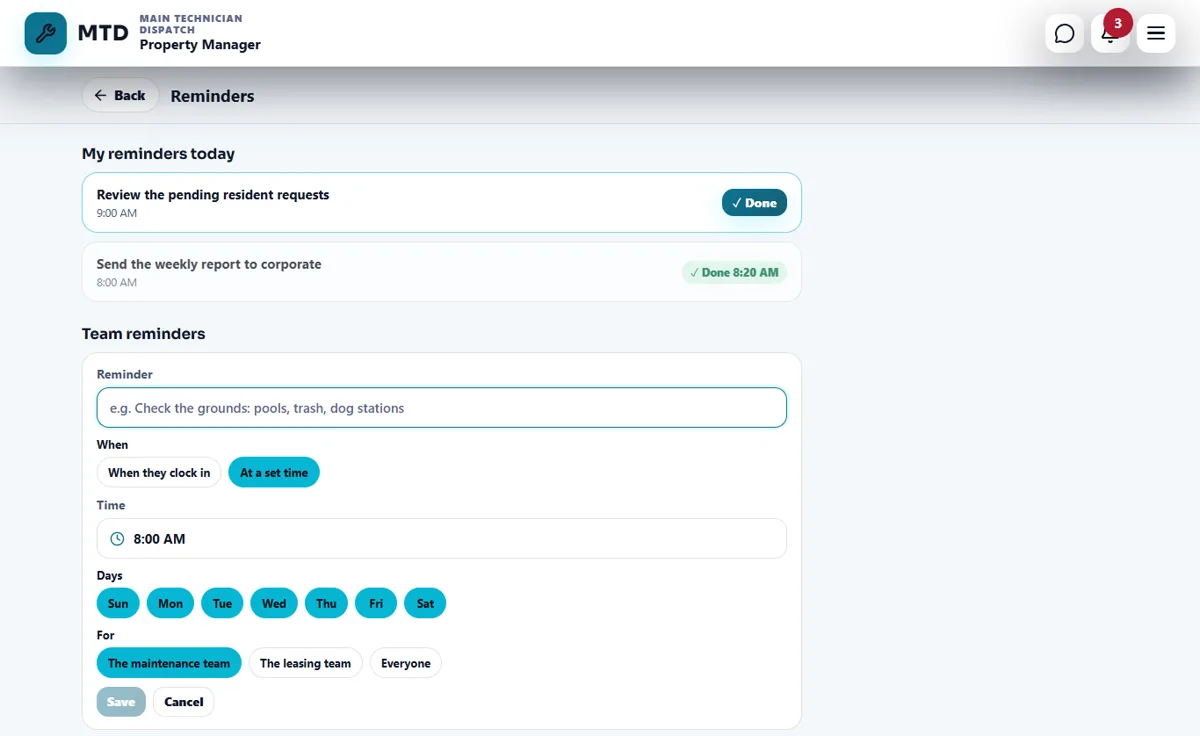
Tap the Reminders tile. Under Team reminders tap + New reminder.
- Write it
In Reminder write a short sentence, for example Check the grounds: pools, trash, dog stations. It can be up to 140 characters.
- Choose when it goes out
Under When, choose When they clock in or At a set time and pick the Time. When they clock in is off while the Time clock module is off.
- Choose the days
Under Days, tap the days of the week. All seven are on at the start. At least one day must stay on.
- Choose who gets it
Under For, choose The maintenance team (technicians, porters and supervisors), The leasing team (leasing managers and consultants) or Everyone. A reminder always goes to a whole team, never to one person. Then tap Save.
What happens each day
- At a set time the reminder goes out once on each chosen day, at that time in the time zone of your workspace.
- When they clock in the reminder goes to the person who just clocked in, if that day is chosen and they are in the team. A correction of a time sheet by a manager never sends a reminder.
- The person gets a notification and finds the reminder under My reminders today, with the time it came in.
Tap Done
- Open My reminders today
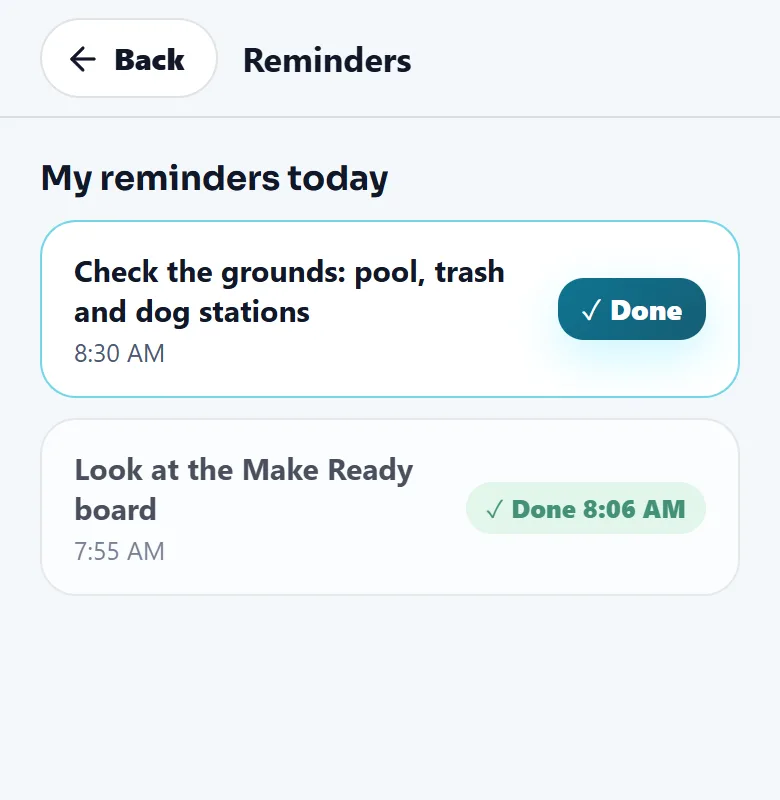
Tap the Reminders tile. Each reminder you got today shows its time.
- Tap Done
Tap Done when it is finished. The reminder then shows Done with the time you tapped.
Follow your team (office and supervisor)
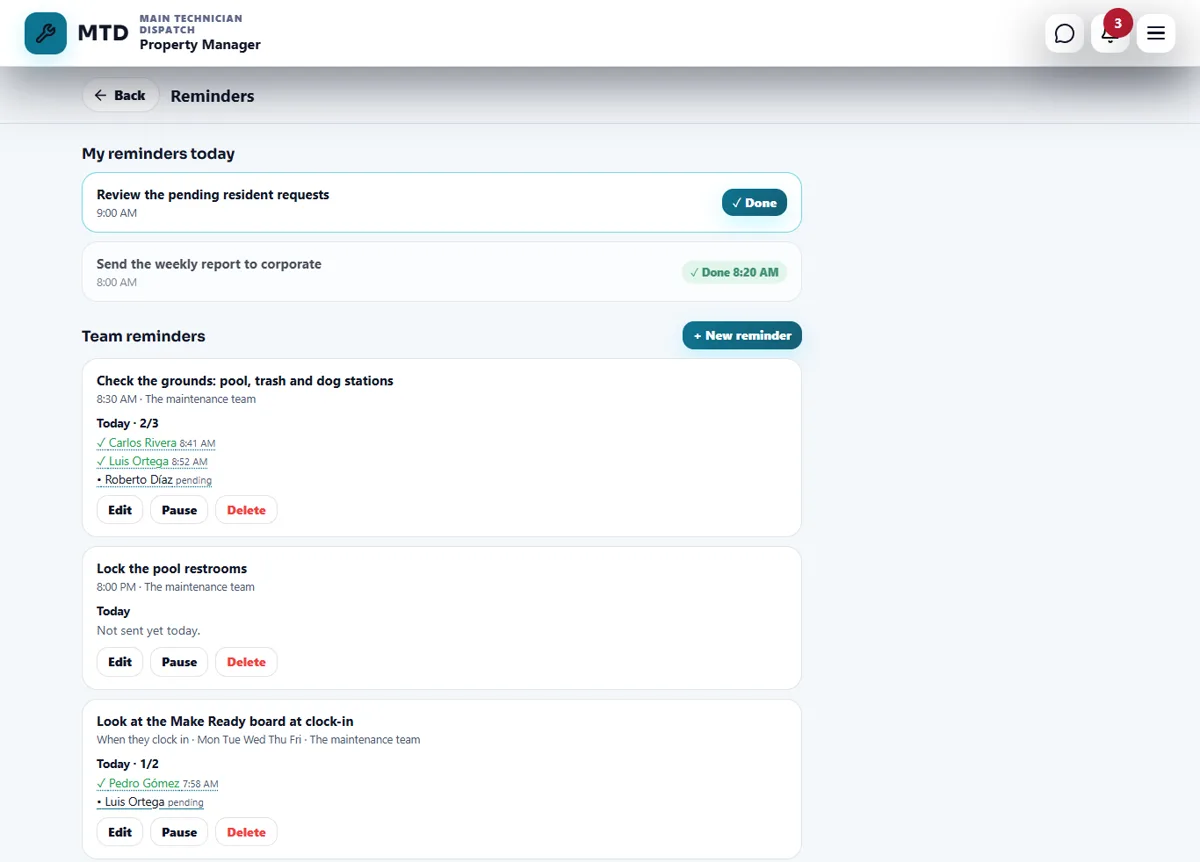
Each reminder under Team reminders shows when it goes out, the days, who it is for and, under Today, how many people are done (for example 3/5) with the name and time of each one, or pending. Not sent yet today means the time has not come. Use Edit to change it, Pause to stop it without losing it (Resume turns it on again) and Delete to remove it. You can have up to 40 reminders.
Tips
Keep each reminder to one action. Use When they clock in for what must happen at the start of the shift, and a set time for what depends on the hour, like locking up.
A clock-in reminder saved before the Time clock was turned off does not go out while the clock is off. The reminder says so in words, and it works again when the clock is back on.
When the module is turned off
With Reminders off, the Reminders tile is gone and no reminder is sent. Your saved reminders are kept and start again when you turn the switch on.
Related guides
Ready to try it with your own property?
Create your workspace, add your property and turn on the modules you need.