Work orders
Work orders are the heart of the app. The office creates and assigns each job, the technician does it from the phone, and everyone can see where it stands.
- Who sees it
- The property manager, the assistant property manager and the maintenance supervisor see every order of the property and assign them. Technicians and porters see their own jobs in My work. Residents see only their own request.
- Where to find it
- The Work orders tile on the home screen (office) and My work (field).
- What it needs
- Nothing. This part is always on, there is no switch for it.
Create an order
You do not type a long form. You give the app the work order you already have (a PDF or a photo) and it reads it for you.
- Open Work orders
Tap the Work orders tile on the home screen.
- Add the file
Tap Create and assign order and choose the file, or drag it onto Drag work orders here. You can add PDFs or photos, up to 100 at once. The file is read on your own device while the page shows Reading the file on this device….
- It goes straight to Open
Each file becomes an order in Open with the title, description and apartment it found, and the original stays attached. If one file cannot be saved, it stays on the screen so you can fix it or skip it.
- Assign it
Open the order, choose a person in Assign to, check the Priority (Emergency, High, Normal or Low) and tap Assign.
Orders also arrive on their own: a resident request that the office accepts, a problem found in an inspection, or a Punch list from Make Ready.
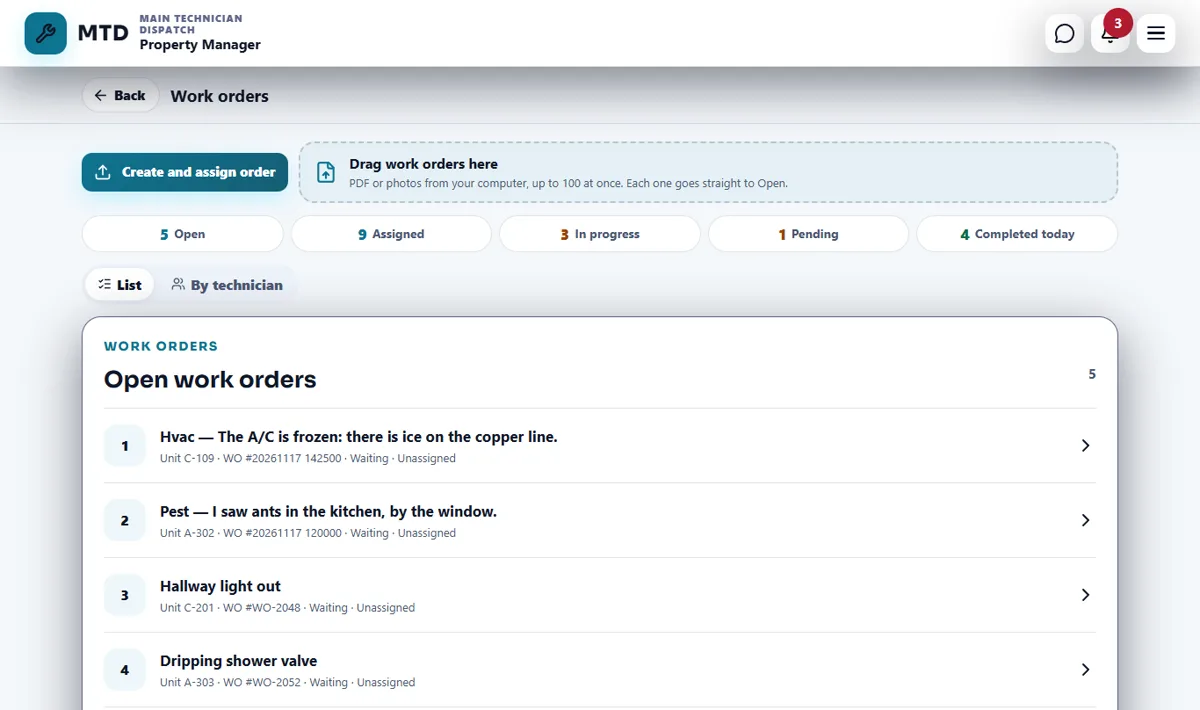
Read the list, the board and the counters
- Counters
The chips at the top count Open, Assigned, In progress, Pending and Completed today. Tap one to see only those orders.
- List
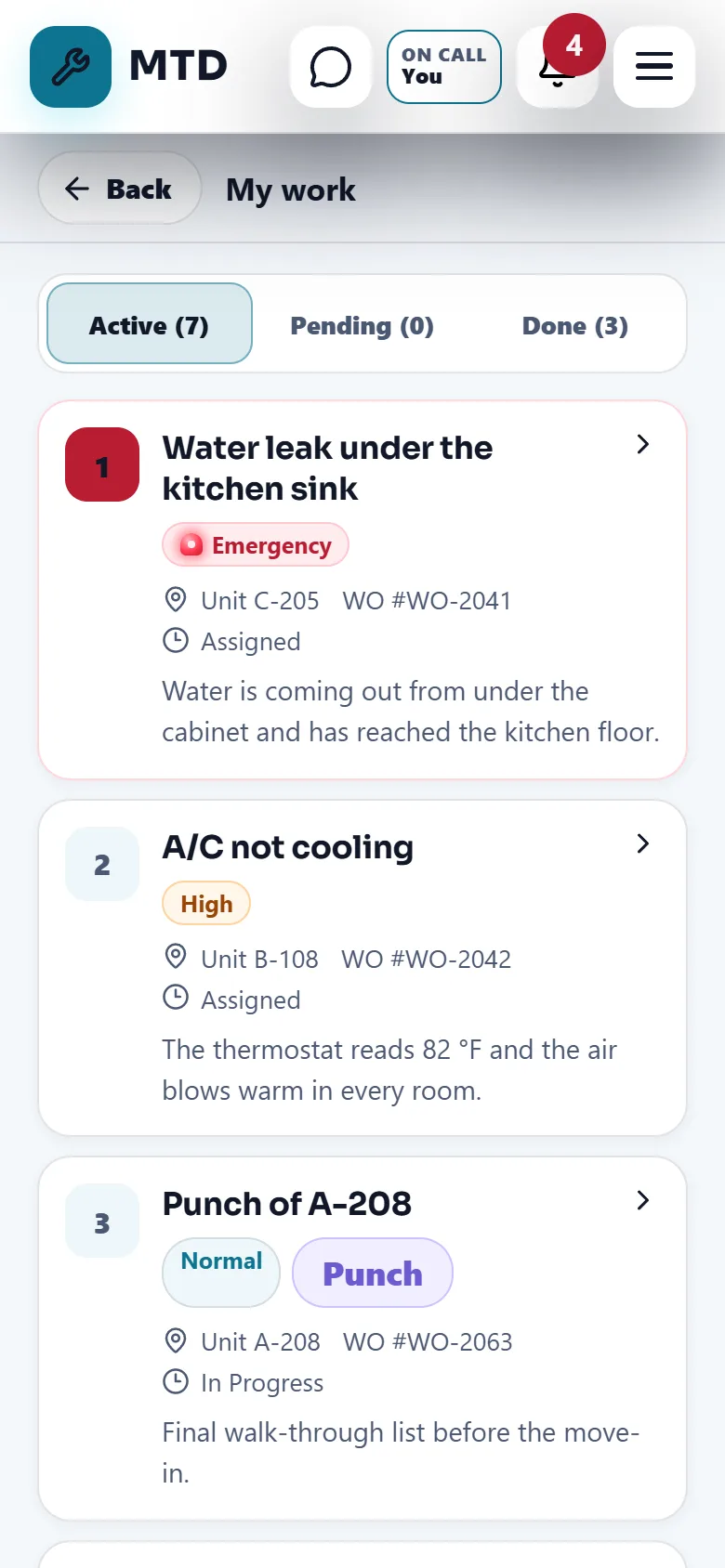
The List tab shows the orders in a numbered list. Orders are sorted by priority, so an emergency is first. It is marked in red with a siren light. After priority they follow the apartments in route order.
- By technician
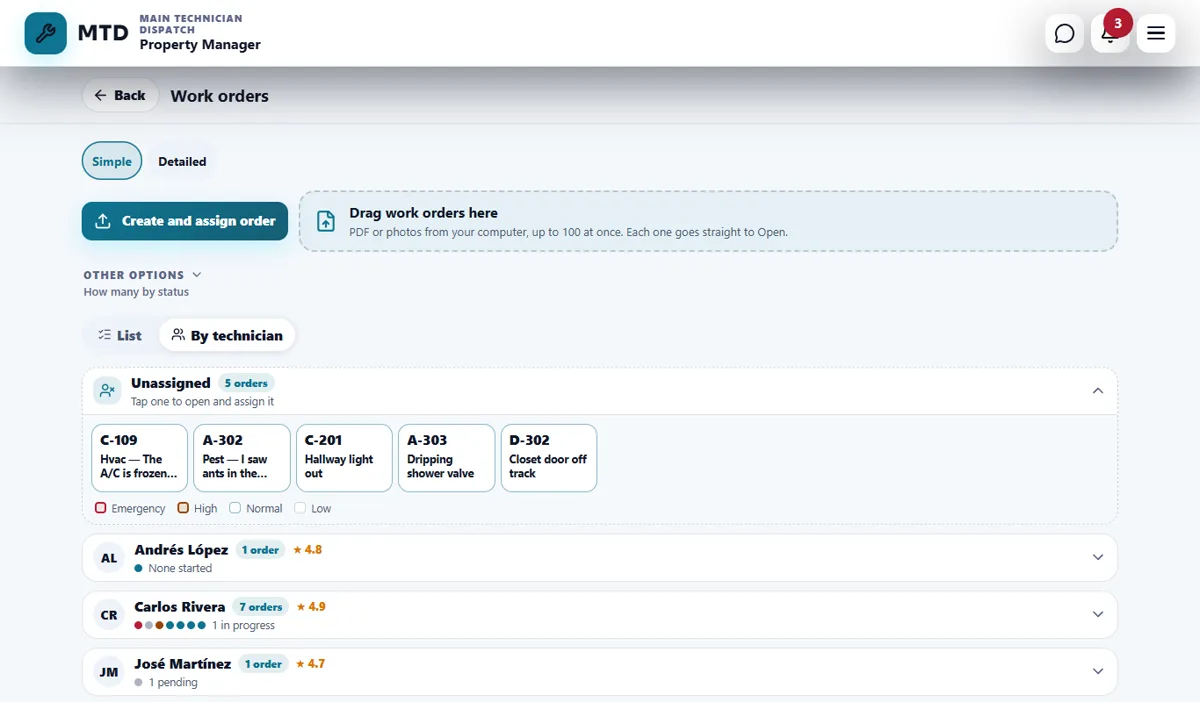
The By technician tab groups the orders by person. Unassigned comes first: tap a tile to open the order and assign it. Choose Simple (tiles and one row per person, with a star rating when residents rate the work) or Detailed (one column per person). The choice is remembered on that device.
- Stack
People who assign work also see a Stack tab to hand out many jobs at once. Drag each job to a technician’s box (on a phone, press and hold the job, or tap it and choose who). Nothing is sent while you arrange: the jobs wait, marked with a dot. Then tap Assign under one person, or Assign to everyone. The app always asks Send or Cancel first, and each technician gets all their jobs together with one notice. A job that already started cannot be moved.
The order window
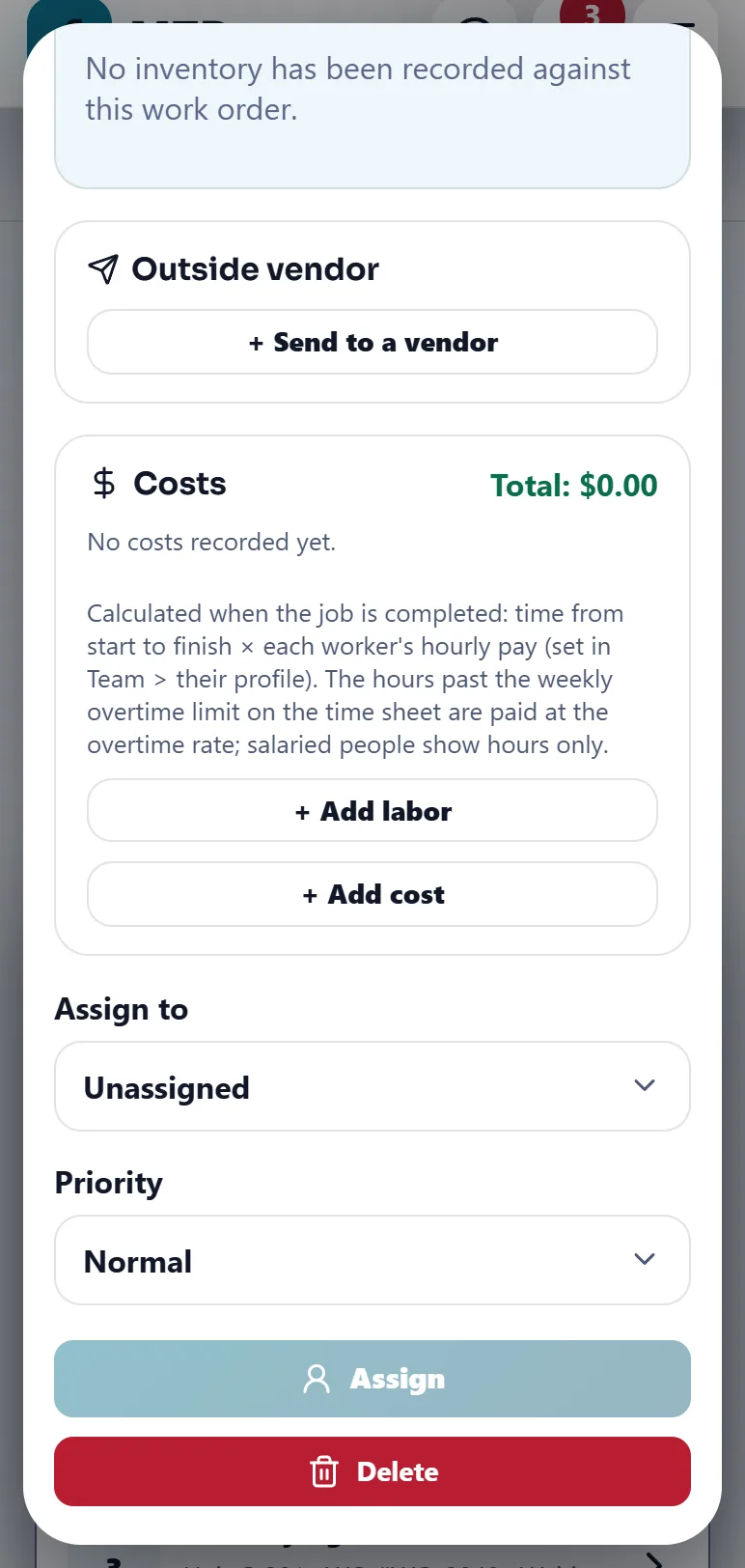
Tap any order to open it. The office sees the description, the tip for the resident, Possible solutions, the original file, what the technician reported, the parts used, the costs and the assignment.
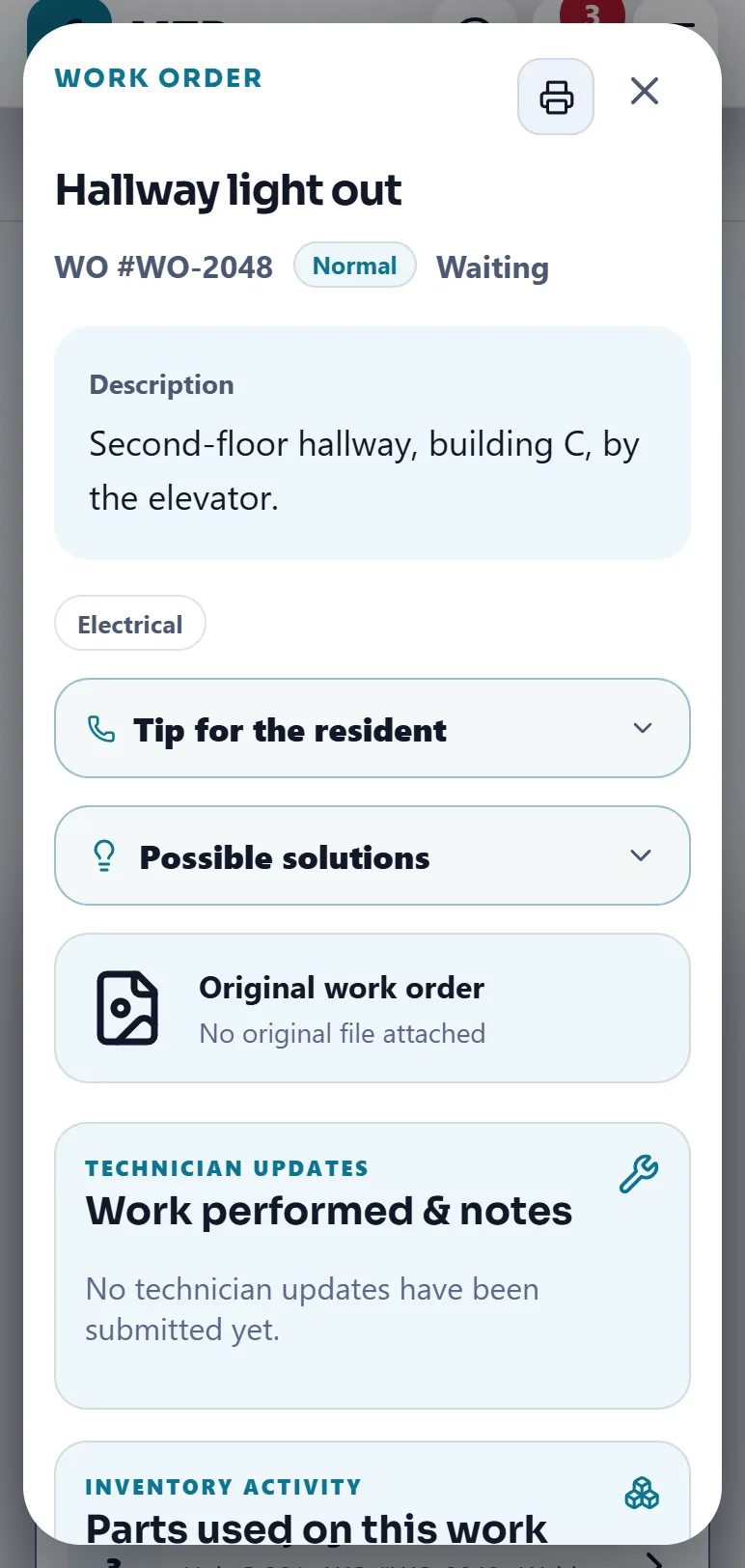
- Printing. The small printer in the corner opens a box to choose how many copies (1 to 10). It is a plan B on paper.
- Costs. Office roles add Add labor and Add cost (vendor, materials bought, other). Labor is calculated when the job is completed from the time worked and the hourly pay saved for each person. The pay stays with the property manager: a technician only sees the costs they added.
- Send to a vendor. Only appears when the Emergency vendors module is on.
- Helpers. A job can have helpers. Only the assigned technician starts and completes it.
The technician’s side
- Open My work
The tile shows the jobs as Active, Pending and Done. An emergency is shown first.
- Look before you go in
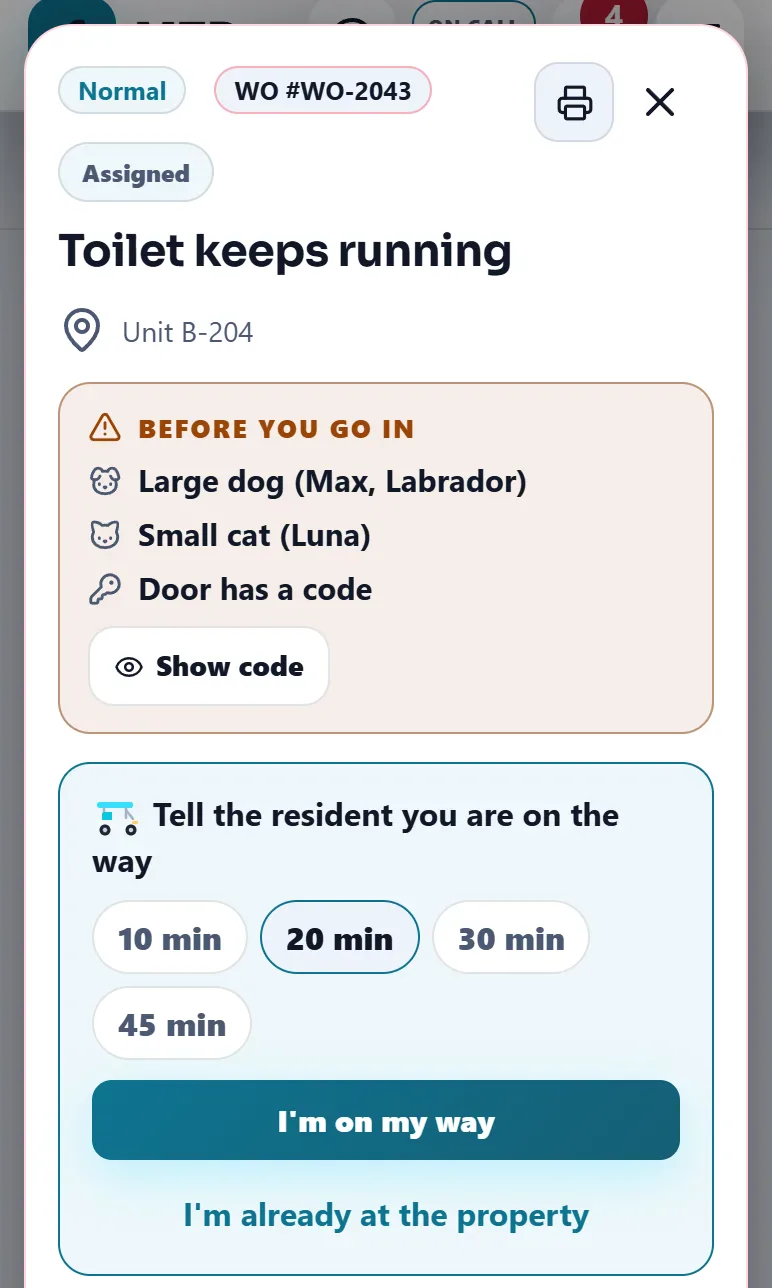
The order shows Before you go in with the pets and whether the door has a code. Show code lets only the people allowed to enter see it, for one minute, and each view is recorded. This only shows what the resident shared in that request, and nothing when the resident portal is off.
- Tell the resident you are on the way
Choose 10, 20, 30 or 45 min and tap I’m on my way, or I’m already at the property. This needs the resident portal and an order linked to a resident.
- Start work
Tap Start work. From then on the priority and the assignment are locked.
- Write what you did
Under What did you do? write the result. You can dictate it. Add a photo if it helps (it is optional). With Inventory on, the app reads your text and asks which materials you used.
- Complete, or move to Pending
Tap Complete work order. If you cannot finish, open Can’t complete this work order?, choose a reason (dog loose, key does not work, minor present without an adult, resident unavailable, parts needed, vendor needed or other), add details and tap Move to Pending. The office sees the reason. Resume work brings it back.
When the work is done
A resident who sent a request keeps seeing it as in progress until the office closes it. On a completed order the property manager or the supervisor sees Close it for the resident: choose which photos to share, add an optional message and tap Mark as completed for the resident. Take back undoes it. Emergencies close by themselves, see the Emergencies guide.
Possible solutions
Inside the order, Possible solutions lists likely causes, what to check, parts that may be needed, steps and safety notes. First comes a saved tips list; below it a suggestion marked AI suggestion — verify on site. They are suggestions to check on site, not facts about the order. For the technician it opens by itself until the job starts. The office also gets Tip for the resident: safe steps you can read on the phone.
Tips
Give each order a clear title and the apartment. Use Stack in the morning to send each technician the whole day at once. Use the counters, not memory, to find what is waiting.
Related guides
Ready to try it with your own property?
Create your workspace, add your property and turn on the modules you need.